Unifi Setup for Beginners: A No-CLI 2026 Walkthrough
Step-by-step Unifi network setup for beginners - adopt your gateway, configure Wi-Fi and a guest network, all from the mobile app. No CLI required.
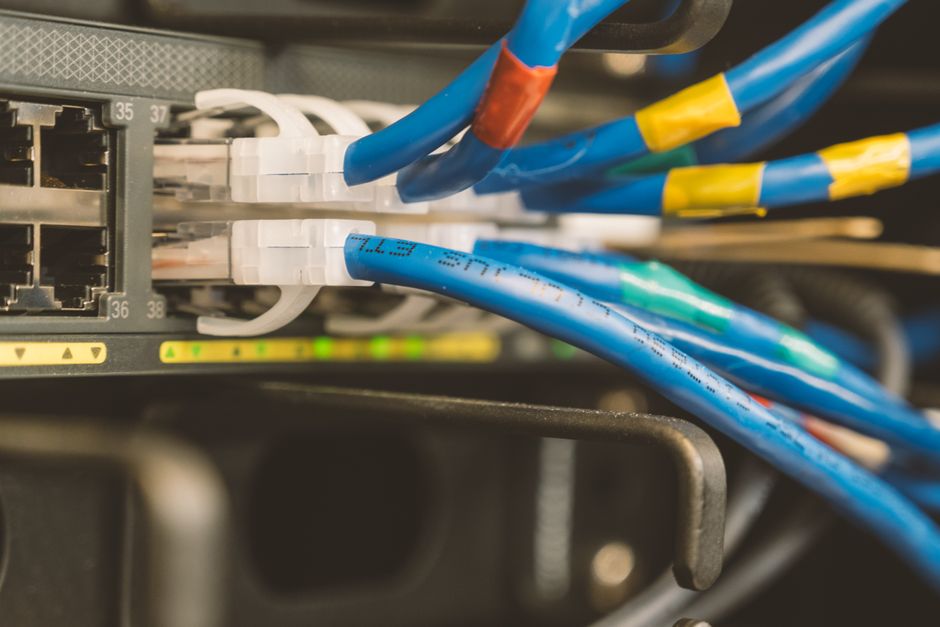

A complete Unifi setup for beginners only needs the official Unifi mobile app, a Unifi gateway, and about half an hour. There is no terminal, no command line, no controller VM to install - Ubiquiti now ships a guided setup wizard that handles adoption, Wi-Fi, and guest networks from your phone. This walkthrough covers exactly what you tap, in the order you tap it, with the jargon translated as it appears.
The instructions below assume you've bought a current-generation Unifi gateway with a built-in controller - a Unifi Dream Router (UDR), a Cloud Gateway Ultra, the mid-tier Unifi router with rack-mount form factor, or Max (UCG-Ultra / UCG-Max), or a Dream Machine SE / Pro (UDM SE, UDM Pro). All of these run the controller software locally, so you don't need to plug a separate Cloud Key in or pay for hosting. If you bought a non-gateway Cloud Key by itself or a standalone access point with no gateway, the workflow is similar but a controller has to come online first.
What You'll Need Before You Start
Five things to have ready
A Unifi gateway with a built-in controller
UDR, UCG-Ultra, UCG-Max, UDM SE, or UDM Pro. The gateway is the box that runs the Wi-Fi network.
Your existing ISP router or modem
Plus its admin password if you need to switch it to bridge mode later. Keep the username and password for any PPPoE connection handy.
One ethernet cable
To connect the Unifi gateway's WAN port to the ISP modem. Most gateways ship with one in the box.
The Unifi mobile app
Free on iOS and Android. Search for 'Unifi' published by Ubiquiti, Inc.
A free Ubiquiti account
Sign up at ui.com if you don't have one. The same account ties together every Unifi site you ever build.
Step-by-Step: Setting Up Your Unifi Network
Physically connect the gateway
Plug the gateway's WAN port (often labelled 'Internet') into your ISP modem with an ethernet cable. Power the gateway on and wait 60 to 90 seconds. The status LED should settle on solid white or blue. On a Dream Router, the front display will progress through 'Booting' then show its setup IP.
Connect your phone to the gateway's setup Wi-Fi
Out of the box, the gateway broadcasts a temporary SSID called something like 'Setup-XXXXXX'. Join it from your phone's Wi-Fi settings. No password is needed at this stage. Once joined, your phone is on the gateway's local network and ready to adopt it.
Open the Unifi app and sign in
Launch the Unifi mobile app, choose 'Sign In With Ubiquiti Account', and enter your ui.com credentials. The app scans the local network and detects the new gateway automatically - it appears as a 'New Device Found' card with an Adopt button.
Adopt the gateway
Tap Adopt. 'Adopting' simply means pairing your account with this hardware so it shows up under your profile and accepts your configuration. Adoption typically takes 30 to 60 seconds while the gateway runs through its first-boot checks.
Run the setup wizard
After adoption, the wizard asks for a site name (call it 'Home'), your country and timezone, and whether to enable automatic updates. Leave automatic updates on - Ubiquiti pushes firmware regularly and the updates close real security holes. Skip the 'Auto-Optimise' radio-channel option for now if you live in a flat with lots of neighbouring Wi-Fi; it works better once your access points have been in place for 24 hours and the gateway has a sense of the radio environment.
Create your primary Wi-Fi network
The wizard then asks for a Wi-Fi name (SSID) and password. Pick something distinct - 'Smiths' is fine, 'BT-HUB-FX0K' is not. Choose WPA2/WPA3 mixed security if it's offered (this lets older devices like a Sonos One join while still allowing WPA3 on newer phones). The wizard creates a single combined 2.4 GHz + 5 GHz + 6 GHz network by default, which is what you want - band-steering decides which radio each device gets.
Add a guest network
Either inside the wizard or under Settings → Wi-Fi after, create a second SSID for visitors. Name it 'Guests' and give it a separate password. Toggle on 'Guest Network' - this isolates connected devices from the rest of your network and disables admin access to the gateway. If you want a portal that shows a logo and terms before letting people online, you can enable that later under Settings → Hotspot, but it isn't needed for a normal household.
Adopt any access points or switches
If you bought additional Unifi access points (e.g. a U6 Mesh, U6+, or U7 Pro) or a managed switch, plug them in to a port on the gateway or to a PoE switch. The app surfaces a 'New Device Found' card for each. Tap Adopt on each one. Once adopted, hold a device's card and rename it after where it lives - 'Living Room AP', 'Garage Switch'. That naming pays off the first time a device misbehaves and you need to find it on the network map.
Tour the app and pin what you'll actually use
Spend two minutes in the bottom-nav tabs: Clients shows everything currently connected, Devices is your hardware list, Insights shows traffic and Wi-Fi quality, More holds settings. Long-press a client to rename it ('Rob iPhone', 'Kitchen Echo') - the named list is what makes the rest of the app readable in a month's time. You're done with the core setup at this point.
The One Big Beginner Gotcha: Double NAT
You'll know you've fixed double NAT when the Unifi app's WAN status shows your real public IP (something starting with 80.x or 90.x for a UK ISP, not a private 192.168.x or 10.x). Most home users never notice double NAT until they try to forward a port or run a self-hosted service, but it's worth fixing on day one - sorting it later means disconnecting devices that have already locked onto a network setup.
The other common day-one problem isn't a setting at all: it's signal. A single access point inside a Dream Router won't blanket a three-bedroom semi. If Wi-Fi feels weaker than the eero or BT mesh it replaced, you don't have a bad Unifi - you need a second access point. Pair the gateway with a U6+ or U6 Mesh upstairs and the picture changes completely.
Where Unifi Gets Jargon-y - Translated
Adopt
Pair. Adopting a device pairs it to your controller so it shows up in the app and accepts your configuration.
Site
A single physical network. Most home users only ever have one site, called something like 'Home'.
Controller
The brain. On modern gateways the controller runs inside the gateway itself, which is why you don't need a separate computer.
SSID
The Wi-Fi name your phone sees in the network list. You can run several SSIDs at once - a main one, a guest one, an IoT-only one.
VLAN
A separate virtual network that shares the same hardware. Beginners can ignore this until they want to put smart-home devices on their own subnet.
Provisioning
What the app shows when a device is applying a configuration change. It looks dramatic but usually completes in under a minute.
Should I Enable Automatic Updates?
Yes. Unifi firmware updates are how Ubiquiti closes security holes - the WPA2 KRACK fix, the Log4j-era CVE patches, and several access-point reboot reliability fixes all shipped as background updates. Leaving updates off on a home network is the moral equivalent of running an unpatched Windows machine in 2010, and the consumer-grade automatic-update window the gateway picks (typically 03:00 to 05:00 local time) is genuinely unobtrusive - there's a brief Wi-Fi drop while an access point reboots, then it's back. If you run anything time-critical at 4am you can shift the window under Settings → System → Updates.
If you'd rather have manual control, you can set the gateway to notify-only and run updates yourself on a Saturday morning. Don't disable updates entirely - old Unifi firmware shows up on automated vulnerability scans within hours of a public CVE.
Frequently Asked Questions
Do I need to install the Unifi controller on a computer?
Can I set up Unifi without the mobile app, on a laptop browser instead?
How long does Unifi setup take for a beginner?
Will Unifi replace my ISP router completely?
Do I need a Unifi switch to get started?
What if a step in the wizard fails or hangs?
Next Steps
With the basics live, the next decisions are about depth rather than setup. If you're not sure Unifi is the right call for your household at all, the broader pros-and-cons read sits in our Is Unifi Worth It for Home guide. If you've bought the gateway but still need to pick access points and a switch, the UK Unifi starter-kit roundup covers the combinations most homes actually need. And once everything is online, the Wi-Fi-hardening basics in How to Secure Your Home Wi-Fi in 10 Minutes apply directly to a Unifi network - strong WPA3 passwords, a separate guest network (already done above), and disabling WPS on the ISP modem.
From here it's worth letting the network run for a week before fiddling. Unifi exposes a deep pool of settings - VLANs, traffic identification, intrusion detection, port profiles - and they're all easier to reason about once you've seen a quiet network running for a few days. Tuning a network you haven't observed is the fastest way to break it.
Not sure Unifi is right for you?
Our plain-English Unifi worth-it guide weighs Unifi against eero, Asus AiMesh, and an ISP router for a typical UK home.