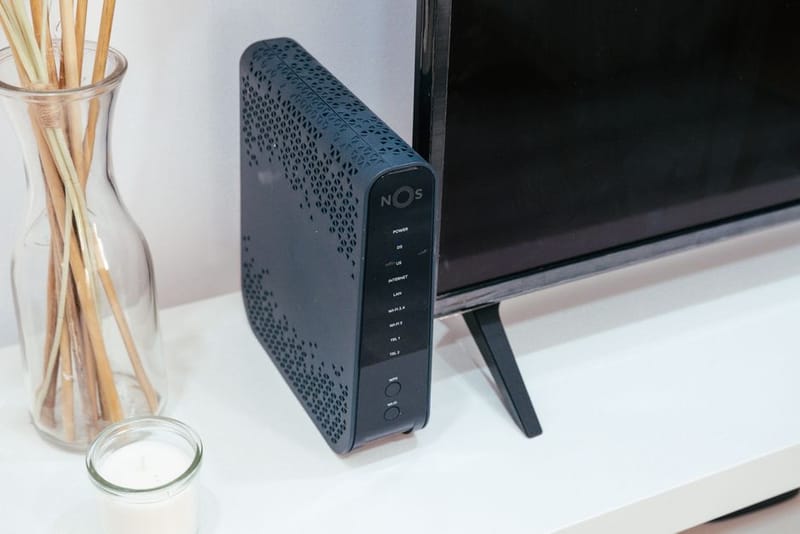
Your broadband router is probably the cheapest thing your provider could legally ship to you. It works fine for a couple of laptops and a phone. It does not work fine for a smart home with thirty-odd devices all chattering away - bulbs, speakers, doorbell, hubs, the kid's iPad, the streaming stick, the robot vacuum that gets stuck behind the sofa twice a week.
At some point you'll notice the symptoms: the bulb in the back bedroom takes five seconds to turn on, the doorbell drops its connection while the postman is trying to deliver a parcel, and Alexa pretends she 'didn't quite get that' because the packet got lost on the way back to the cloud.
The fix is a mesh WiFi system. Not a single router with the antenna pointed at a hopeful angle, but a small set of nodes that hand devices off to each other so the signal stays strong wherever you are. This guide explains why a smart home needs mesh, what specs actually matter, and which systems are worth a look in 2026.
Why Smart Homes Need Mesh (and Not Just a Bigger Router)
It's not really about speed - it's about the number of devices
A traditional single router is built around the assumption that you have a handful of devices in a small radius. A smart home breaks both assumptions.
Device count. A modest UK smart home easily clears 20–30 connected devices once you've added bulbs, sensors, smart plugs, a few speakers, the doorbell, and the family's phones, tablets and laptops. A typical ISP-supplied router starts to wheeze around 25 devices and falls over above 50. Mesh systems are designed to handle 100+.
Coverage. A bulb in the airing cupboard, a sensor in the loft, a doorbell on the front of the house, and a vacuum at the back garden bin - that's four devices in four corners. One router can't cover all of them well, no matter where you put it. Mesh nodes spread the signal to where the devices actually live.
Bands. Most smart-home gadgets connect on the 2.4 GHz band because it travels further through walls. Heavy traffic (streaming, video calls, big downloads) wants 5 GHz or 6 GHz. Mesh systems with dedicated bands for backhaul (the link between nodes) keep the smart-home traffic and the streaming traffic from stepping on each other.
Roaming. Your phone walking from kitchen to bedroom should hand over invisibly. With a single router and a separate range extender, it usually doesn't - devices stick to the weaker signal until they give up and reconnect. Proper mesh systems handle the handover for you.
What to Look For in a Smart-Home Mesh System
The specs that actually matter (and the ones that don't)
01
WiFi 6 or newer (WiFi 6E or WiFi 7)
WiFi 5 mesh is end-of-life now - fine if you find a bargain, but you'll be replacing it sooner. WiFi 6E and WiFi 7 add the 6 GHz band, which is a clean motorway with very few cars on it. Worth it if your house has a lot of devices fighting for airtime.
02
Tri-band, ideally with a dedicated backhaul
Tri-band means three radios. Two for client devices (2.4 + 5 GHz, or 5 + 6 GHz), one reserved for talking to the other nodes. This stops your smart-home traffic from competing with the cross-house mesh traffic. Dual-band mesh works but slows down once you add a third or fourth node.
03
100+ device support
Manufacturers list this in the spec sheet. Anything claiming '40 devices' is fine for a flat, not for a 4-bed house with a smart kitchen.
04
A good app
You will live in this app: setting up new devices, reviewing who's on your network, fixing things at 11pm. Eero, TP-Link Deco, and Google Home are widely regarded as the most polished. Asus and Netgear are powerful but feel more like configuration software.
05
Ethernet backhaul support
If you have ethernet wiring (or could pull a single cable to the far end of the house), wired backhaul makes a mesh dramatically more reliable. All the major systems support this.
06
Sensible privacy and update policy
Eero is owned by Amazon and ships activity data to the cloud by default. Google Nest WiFi sits in your Google account. TP-Link's data handling has been fine but is worth checking. If privacy matters to you, dig into the spec sheet before you commit.
Specs You Can Mostly Ignore
Don't get nerd-sniped by the box copy
Mesh router boxes are covered in numbers, and most of them don't matter for a smart home.
Theoretical top speed (e.g. 'AX5400', 'BE19000'). These are the maximum theoretical bandwidth across all bands, summed up. No real device hits these numbers. Two phones doing speedtests at the same time hit a small fraction. For comparison shopping, just check the WiFi standard (6 / 6E / 7) and band count.
Number of antennas. External antennas look impressive but most modern mesh nodes hide them inside. The number doesn't predict performance well - what matters is the chipset and the band layout.
'Up to 6,000 sq ft' coverage claims. Coverage is measured in a perfect lab with no walls. A standard British semi has thicker walls than a US lab - assume real coverage is roughly half the headline number, and add a node if your house is awkward.
Three Mesh Systems Worth a Look in 2026
One mid-range, one premium, one for the Google household
These are not personally tested in our spare room (we don't have a spare room). They're picks based on specs, manufacturer documentation, professional reviews, and customer feedback patterns at the major UK retailers. As ever, prices and availability change weekly - always check current pricing before buying.
TP-Link Deco BE63 - Best All-Rounder
WiFi 7 without the eye-watering price tag
The Deco BE63 is TP-Link's mid-tier WiFi 7 mesh, and at 2026 prices it offers an unusually good balance of features for the money. Tri-band (2.4 / 5 / 6 GHz), supports the new 4K-QAM and 320 MHz channel features that come with WiFi 7, and handles 200+ devices according to the manufacturer's spec sheet.
The Deco app is widely regarded as one of the better consumer mesh apps - clean device list, parental controls, and easy guest network setup. Two-pack covers a typical UK 3-bed; three-pack is the comfortable pick for a 4-bed or split-level house.
Where it wins for smart homes: the device count is high, the dedicated 6 GHz band stops streaming and IoT traffic from colliding, and the BE63 supports HomeShield for basic network-level threat blocking (the basic tier is free; the paid tier adds more comprehensive parental controls).
Where it loses: the parental controls aren't as deep as Eero's paid tier, and TP-Link is a Chinese-headquartered company so if you have specific concerns there (some people do), check the data-handling page before committing.
If you'd rather spend more for TP-Link's flagship, the Deco BE85 sits above the BE63 in the same family. It's quad-band rather than tri-band, supports higher peak throughput, and is the strongest pick when you've got a large house, 300+ devices, or a need to run multiple APs without the satellite-to-router uplink becoming the bottleneck. The BE63 is the price-sensitive choice; the Deco BE85 is the no-compromise one.
Eero Pro 6E - Best for Alexa Households
Polished, dead-simple, and your Echos become extenders
Eero is Amazon-owned, and that integration is the whole point. If you already have Echo Dots scattered around the house, several Echo models can act as mesh extenders - extending coverage without adding a new device on your sideboard.
The Eero Pro 6E is tri-band WiFi 6E (not 7 - Eero's WiFi 7 model is the much pricier Eero Max 7). The setup is the most painless of any mesh system on the market: scan a QR code, plug in, done. The app is excellent. Coverage and device support are very solid for the segment.
Where it wins for smart homes: zero-friction setup, deep Alexa integration, and Eero Insights gives you a useful view of which devices have been online and how much they're using. It's the system to recommend to anyone who wants 'good wifi without thinking about wifi'.
Where it loses: Eero Plus (the paid subscription) gates some features that come free on competitors - like content filtering, ad blocking, and advanced security. And because it's Amazon-owned, your network metadata is part of the Amazon ecosystem. Fine for many people, a hard pass for a few.
Google Nest WiFi Pro - Best for Google Home Households
If your smart home runs on Google Assistant, this is the obvious pick
Nest WiFi Pro is Google's WiFi 6E mesh, sold as 1, 2, or 3 packs. It's tri-band, supports Matter, and integrates directly with the Google Home, Google's smart home ecosystem and companion app for Nest devices, app - your wifi nodes show up alongside your bulbs and speakers, which is genuinely useful when you're trying to figure out why a Nest Hub is being slow.
For a Google Home household, this is the natural choice. The setup mirrors any other Google Home device, the privacy controls live in the same place as everything else Google, and the same account that controls your speakers controls your wifi.
Where it wins for smart homes: Matter is a first-class citizen, Thread is built into the nodes (so they double as Thread border routers - useful for low-power smart-home devices), and the integration with the Google Home ecosystem is genuinely smooth.
Where it loses: only WiFi 6E, not 7 - fine for most households but worth noting if you want to be future-proofed. And the privacy trade-off is, well, Google. Read the privacy policy before you commit.
Mesh Sizing - How Many Nodes Do You Actually Need?
Don't buy more than you need
Flat or 2-bed terrace: Two-pack is plenty. One node by the broadband entry, one in the centre of the property.
3-bed semi or terrace: Two-pack works for most. Three-pack if you have a thick chimney breast in the middle of the house, a big garden you want to cover, or a loft conversion.
4-bed detached or split-level: Three-pack is the safe choice. Four if there's an outbuilding or office at the bottom of the garden you want covered.
Very large or oddly-shaped homes: Add nodes one at a time. More than four nodes in a domestic setting usually points to a wiring problem rather than a coverage problem - a wired ethernet backhaul to the far end of the house is more reliable than chaining wireless hops.
Mesh Wi-Fi for Large Homes (2,500+ sq ft)
Coverage maths, satellite placement, and when to step up to a 4-pack
Most mesh systems are marketed with peak square-footage numbers ("covers up to 5,500 sq ft!") that assume an empty house with paper walls. UK houses - solid brick, thick lath-and-plaster ceilings, stone, sometimes a foiled-back plasterboard insulator - eat that figure in half. A 2-pack rated for 4,500 sq ft does fine in a 1,800 sq ft flat and starts to struggle by the time you cross 2,500 sq ft of real coverage.
If your house is in the 2,500–3,500 sq ft range - typical for a 3–4 bed detached, an extended semi, or a long Victorian terrace - the maths gets specific. Here's what to actually buy.
Up to 2,000 sq ft (flat, 2-bed terrace)
2,000–2,500 sq ft (3-bed semi, small extension)
2,500–3,500 sq ft (detached, large semi, extended terrace)
3,500–5,000 sq ft (large detached, listed, two-storey-plus)
5,000+ sq ft / outbuildings
Recommended pack
2-pack
2- or 3-pack
3-pack
4-pack (or 3-pack + single-node add-on)
Whatever the brand sells, plus wired backhaul
Why
One node by the router covers the ground floor; a second upstairs handles bedrooms and smart-home devices. More nodes add expense without coverage benefit.
Two nodes work if the house is roughly rectangular. Add a third if there's a loft conversion or a long thin layout (Victorian terraces especially).
This is where 2-packs visibly fail. A central node by the router, one upstairs, and one at the end of the house furthest from the router covers it. Garden coverage usually needs a fourth as an add-on.
Thick walls in older detached houses drop mesh hops fast. Four nodes - one per quadrant, with at least one upstairs - keeps every smart device within ~3 wireless hops of the router.
At this scale wireless backhaul stops being reliable. Run Cat6 to each node and switch the app to wired-backhaul mode. Most brands support 4–8 nodes in software.
Per-node spacing
~10–12m apart, line-of-sight preferred
~10m apart
~8–10m apart through walls
~7–9m apart through internal walls
Limited only by your cabling
A mesh node typically gets you 9–12m of solid signal indoors before a wall halves it. Plasterboard absorbs around 3–6 dB per pass, brick around 6–12 dB, and stone or render-on-block easily 15 dB or more. That's why two-node "whole house" specs don't survive contact with a real semi. The rule of thumb worth memorising: plan for one node per 800–1,000 sq ft of usable floor area, with the proviso that the nodes need clear paths back to each other (or to the router) - not the other way around.
The other thing the spec sheets quietly skip: every wireless hop costs you bandwidth. A device two nodes deep into your mesh shares its wireless link with the satellite-to-router backhaul. If that's a single 4K TV at the far end of the house, fine. If it's 30 smart devices on the same satellite, you'll see latency spikes. Running Ethernet to each node and switching the app to wired-backhaul mode fixes it, and is worth doing in any house over 2,500 sq ft.
Beyond Mesh: When to Step Up to Unifi
Cameras, doorbells, VLANs - when the consumer router app starts to feel cramped
If you find yourself adding cameras to every approach to the house, a doorbell with cloud-free recording, three or four switches for a guest network, and a separate VLAN to keep the kids' iPads off the smart-home gear, you've outgrown mesh. The point where consumer mesh stops being the right tool is roughly when you're managing more than two or three 'network rules' in the app - guest network, parental controls, IoT separation - and starting to wish for one place that holds all of them.
Unifi is the most popular step-up for prosumer home networks. It is harder to set up, needs a controller, and costs more up-front, but it scales sideways into cameras, door access, switches, and even phones in a way mesh systems never will. See our Unifi vs mesh WiFi comparison for a head-to-head on when each makes sense.
Setup Tips That Will Save You an Evening
The bits the manuals don't tell you
01
Put the router-node where your broadband enters the house
Don't try to put it in 'a nice central spot'. The node connected to your modem is the gateway - start there and place the others outward from it.
02
Spread additional nodes out, not stacked
A common rookie mistake is putting all three nodes on the same floor in adjacent rooms. Each node should ideally cover a different zone - upstairs, downstairs, garden office.
03
Disable your old router's WiFi if it's still doing double duty
If your ISP modem can be set to 'modem-only' or 'bridge' mode, do it. Two competing 2.4 GHz networks in the same house slow everything down.
04
Add smart-home devices one at a time after the mesh is up
Bringing a mesh online and re-pairing 30 bulbs at the same time is misery. Set up the network, get the basics working, then re-pair smart devices in batches over a couple of evenings.
05
Reserve IP addresses for hubs and the main devices
Use the app's 'reservation' feature for your Hue bridge, your Home Assistant box, and any device you've ever needed to find by IP. It saves a lot of frustration later.
Frequently Asked Questions
Do I need WiFi 7 for a smart home?▾
Not really. Smart-home devices mostly run on 2.4 GHz at very low bandwidth, so WiFi 6 is plenty for the devices themselves. Where WiFi 7 helps is the rest of your network - streaming, video calls, big downloads - and that's a household decision rather than a smart-home one. WiFi 6E is a sweet spot for most UK households in 2026.
Will mesh WiFi fix my smart bulbs that keep dropping off?▾
Often, yes. Most smart-bulb 'dropouts' are weak 2.4 GHz signal where the bulb is mounted. A mesh node closer to the affected bulbs usually solves it. If the issue persists after a mesh upgrade, the bulb itself may be faulty - try moving it to a known-good location to test.
Can I use my old router as a mesh node?▾
Almost never. Mesh nodes need to talk to each other in a specific protocol, and consumer routers from different manufacturers don't speak to each other. The exception is Asus's AiMesh feature, which lets some Asus routers form a mesh together. For everyone else, retire the old router or repurpose it as a wired access point in bridge mode.
How important is ethernet backhaul?▾
Hugely important if you can manage it. Wireless mesh works, but a wired backhaul (one ethernet cable from the main node to each satellite) makes the network significantly more reliable and frees up wireless capacity for actual devices. If you have ethernet sockets in the walls, use them.
Should I worry about radio waves from a mesh system?▾
No. Mesh nodes transmit at the same low power as any consumer router - well below regulatory exposure limits. More nodes does not mean more total radiation, just better-distributed signal.
What about Asus, Netgear, or Linksys?▾
All make excellent mesh systems. Asus ZenWiFi BT8/BT10 is great for power users who want deep configuration options. Netgear Orbi 970 is the premium WiFi 7 option and very capable, but the app is showing its age. Linksys Velop is a competent mid-tier option. We focused on three above because they cover the most common smart-home household types.
Will a mesh system slow down my broadband?▾
No. Mesh systems can carry the full speed of a UK broadband connection (up to and including gigabit fibre and beyond). What can happen is that a poorly-placed satellite node hits a weak signal back to the main node and bottlenecks devices connected to it - which is solved by repositioning the node or running an ethernet cable to it.
Do these systems work with Home Assistant?▾
Yes - any mesh system presents itself as a normal network to Home Assistant. You may not get device-level integration (turning the wifi on or off from Home Assistant), but for the devices on the network it makes no difference what router they're connected to.
What to Do Next
Order of operations for a quiet weekend
If you're getting started with home automation, the wifi is the foundation everything else sits on. It's worth fixing before you add more devices - see our guide on getting started with Home Assistant, the open-source smart home automation platform, and the broader Smart Home 101 series.
If your wifi is currently fine but you're planning to scale up - adding cameras, multiple voice assistants, a robot vacuum or two - get the mesh system in first. Retrofitting is much more painful than starting on solid foundations.
And while you're rebuilding the network, follow our guide on securing your home wifi in 10 minutes. The settings that come out of the box on most mesh systems are sensible, but a few small adjustments make the network noticeably more secure.
Cookies
Your privacy choices
We use cookies for essential site functionality and, with your consent, for analytics. You can change your choice at any time from the footer. Privacy policy