Local AI Image Generators: A Beginner's Guide for 2026
Run a local AI image generator on your own computer - no cloud, no subscriptions. The best beginner-friendly options for Windows, Mac, and Linux.
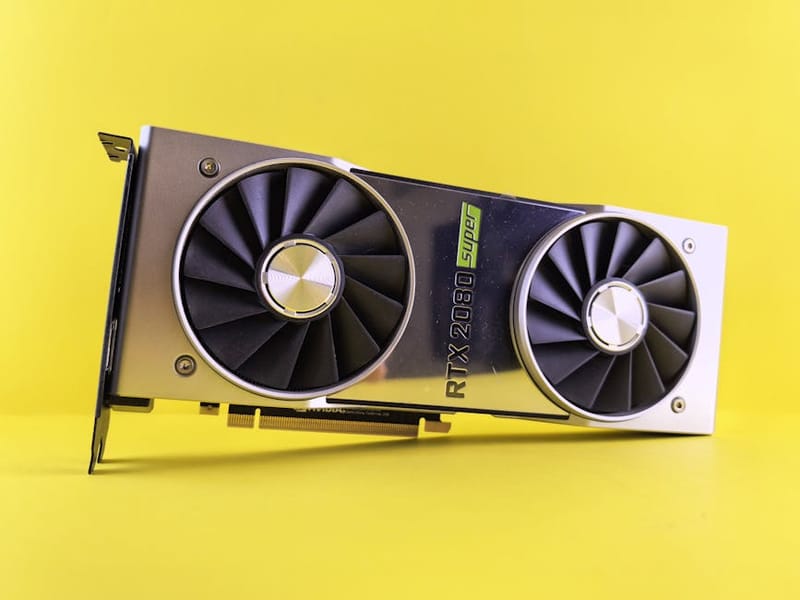

If you've been generating AI images on Midjourney or DALL-E and your monthly subscription bill is starting to look spicy, here's the surprise nobody tells you: you can run an excellent local AI image generator on a normal home computer, for free, with no monthly fee, no rate limits, and nothing leaving your machine. This beginner's guide walks through the four best free options for 2026, what hardware you actually need, and a 30-minute path from zero to your first image.
Why run AI image generators locally?
Three reasons cloud users start looking at local models
Privacy. Every prompt you type into Midjourney, DALL-E or any other cloud service goes to a remote server. Most operators log prompts indefinitely, and several have explicit terms allowing prompts and outputs to be used for further model training. With a local generator, the prompt and the resulting image stay on your hard drive. There is no upload step, ever.
No subscription, no rate limits. A Midjourney plan runs $10-$60/month and limits how many images you can generate. ChatGPT Plus is $20/month for image generation that's slower than locally-run alternatives. A local generator costs nothing per image after the initial setup, and the only rate limit is how fast your GPU can produce them - typically 4-8 seconds per image on a midrange card.
No censorship. Cloud services apply increasingly strict content filters, often blocking innocuous prompts ("a samurai in armour" gets flagged for violence; "a doctor in scrubs" gets flagged for medical content). Local models run whatever model you load, so you can generate the entire range of legal content without playing prompt-engineering games to get around a corporate safety filter.
What hardware do you actually need?
A short, honest answer to the most-asked question
The single number that matters for local AI image generation is VRAM - the dedicated memory on your graphics card. Different image-generation models need different amounts of VRAM, so the right card depends on the model you want to run.
The rule of thumb: 8GB VRAM is the practical floor. With 8GB you can run Stable Diffusion, an open-source AI text-to-image model that can run on personal computers, 1.5 comfortably and SDXL with some optimisation. 12GB lets you run SDXL and the newer Flux models smoothly. 24GB removes essentially all constraints - you can run any model at full quality, batch-generate dozens of images at once, and train your own custom variants.
The good news: an NVIDIA RTX 3060 12GB has been the workhorse beginner's card for several years and is widely available second-hand at sensible prices. Apple Silicon Macs (M1/M2/M3/M4 with at least 16GB unified memory) run Stable Diffusion natively via DiffusionBee - no separate GPU required. AMD GPUs run Stable Diffusion but with worse software support; if you're shopping specifically for AI work, NVIDIA is still the easier path.
VRAM tiers and what each can do
- 8GB (RTX 3060 8GB, RTX 4060 8GB)
- Stable Diffusion 1.5 comfortably, SDXL with optimisation
- 12GB (RTX 3060 12GB, RTX 4070)
- SDXL smoothly, Flux.1 models, comfortable batch sizes
- 16GB (RTX 4070 Ti Super, RTX 4080)
- All consumer models at full quality, multiple LoRA stacking
- 24GB (RTX 3090, RTX 4090, RTX 5090)
- All models at max settings, training custom LoRAs and fine-tunes
- Apple Silicon, 16GB+ unified
- Stable Diffusion via DiffusionBee or Draw Things - slower than NVIDIA but works well
Can you run local AI image generators on an AMD GPU?
Yes, but with more friction than an equivalent NVIDIA card, because most of the tooling is built CUDA-first. The experience depends heavily on your operating system.
On Linux, AMD's ROCm (AMD's open compute platform, the GPU-acceleration stack that rivals NVIDIA's CUDA) gives the closest-to-NVIDIA experience. Stable Diffusion, SDXL, and Flux all run well on ROCm-supported Radeon cards, and both AUTOMATIC1111 and ComfyUI have community ROCm instructions.
On Windows, the two practical routes are DirectML builds (broad compatibility, noticeably slower) and ZLUDA (a CUDA-compatibility layer that lets some Radeon cards run CUDA workloads at near-native speed). Fooocus ships an AMD-friendly launch flag, which makes it the gentlest starting point for Windows on Radeon.
For VRAM, the same rule applies as for NVIDIA: a 12GB-or-more Radeon such as the RX 6700 XT, 7800 XT, or 7900 XT is a sensible floor for SDXL. Expect setup to take longer and generation to be a little slower than a comparable GeForce card, but it absolutely works once configured.
Is Fooocus the best beginner option?
The closest to 'just works' you'll find on Windows or Linux
If you've never run an AI model before, Fooocus is the easiest entry point on Windows and Linux. It's a free open-source application that wraps Stable Diffusion XL with sensible defaults and a Midjourney-style prompt box, so you can paste a prompt and get a high-quality image without learning samplers, schedulers, CFG values, or any of the parameter knobs other tools expose by default.
What makes Fooocus a good first choice:
- Single-click install. Download the package, run the launcher, and the first time you start it the app downloads the model and dependencies automatically. No Python environments, no command-line, no Git.
- Clean default UI. One prompt box, one negative-prompt box, generate. Advanced settings are tucked behind a tab if you want them later.
- Built-in prompt-improvement. Fooocus rewrites short prompts into more detailed ones in the background, so a single-word prompt like "cat" produces a beautifully composed image rather than a thumbnail.
- Style presets. Twenty-plus built-in styles (cinematic, photorealistic, anime, watercolour) you toggle with a button.
Hardware requirement: an NVIDIA GPU with 8GB+ VRAM is recommended. Fooocus does run on lower-VRAM cards but image generation gets slow. Time to first image from a fresh install: typically 15-25 minutes including model download.
Is DiffusionBee the best Mac option?
The 'install and forget it' choice for Apple Silicon users
For Mac users with Apple Silicon (M1, M2, M3, M4), DiffusionBee is the easiest free local image generator. It's a self-contained Mac application - drag it to /Applications, double-click, and it works. Behind the scenes it runs Stable Diffusion compiled to use the Mac's integrated Neural Engine and GPU, so you don't need a discrete graphics card.
What works well:
- True Mac-native install. No Homebrew, no Terminal, no Python. The first launch downloads the model and you're generating images within five minutes.
- Reasonable performance. An M2 Pro generates an SDXL image in roughly 25-40 seconds. Slower than a midrange NVIDIA GPU but well within "acceptable for casual use".
- Good Stable Diffusion 1.5 + SDXL support. The app supports both model lines and lets you import community models from HuggingFace.
What's less good: DiffusionBee lags slightly behind the cutting-edge models (Flux.1 support is limited as of 2026), and the advanced options surface (LoRAs, ControlNet) is less mature than the Windows ecosystem. If you outgrow it, the next step is usually Draw Things (also free, App Store) which adds more controls without much complexity penalty.
Hardware requirement: any Apple Silicon Mac with 16GB+ unified memory. Intel Macs are technically supported but slow enough to not be worth it. Time to first image from a fresh install: typically 5-10 minutes.
Is AUTOMATIC1111 / Stable Diffusion WebUI the most flexible?
What everyone graduates to once they want to fiddle with knobs
AUTOMATIC1111's Stable Diffusion WebUI is the de facto standard tool for serious local image generation on Windows, Linux, and Mac. It's free, open source, and exposes essentially every parameter the underlying model offers. You'll see screenshots and tutorials all over Reddit, YouTube, and Stack Overflow that assume you're running A1111, so picking it up gives you access to a much larger learning ecosystem than the simpler tools.
The trade-off is the install and the user interface. Setup involves cloning a Git repository, installing Python, and running a launcher script that takes 20-30 minutes the first time. The UI is busy - every option exposed at once - and it takes a few hours to feel comfortable navigating.
What you get in return:
- Plugin ecosystem. Hundreds of extensions add features ranging from face-restoration to ControlNet (image-conditioned generation, e.g. force a pose or composition) to LoRA management.
- Custom models. Drop any community model into the models/ folder and reload - the app picks up everything automatically. Civitai hosts thousands of community-trained models for niche styles.
- Img2img and inpainting. Edit existing images, fill in masked regions, blend two images together. The tools that drive most professional AI workflow are first-class features.
Most users start with Fooocus or DiffusionBee, then move to A1111 once they want more control. There's no hurry to switch - the simpler tools are perfectly capable of producing professional-quality output.
Is ComfyUI right for power users?
A node-based workflow tool that production AI artists swear by
ComfyUI replaces the form-style A1111 interface with a node graph - you connect boxes representing prompt encoders, samplers, decoders, post-processing steps, and image-save operations into a workflow that produces an image. It's strictly more powerful than A1111 (anything A1111 can do, ComfyUI can do), but the visual workflow has a learning curve that puts it firmly in 'for users who already know what they want' territory.
You'll know you've outgrown A1111 and want ComfyUI when: (a) you're running multi-step pipelines (generate → upscale → face-restoration → inpaint corrections) and the A1111 UI is making this awkward, (b) you want to share workflows with other people as a single file, (c) you want to script complex generations with hundreds of variations. Until then, A1111 is the better tool.
What about the models themselves?
A short tour of Stable Diffusion 1.5, SDXL, and Flux.1
The 'AI model' is separate from the application that runs it. You can install Fooocus (the application) and choose between several different models (the actual AI brain). Each model has different strengths.
Stable Diffusion 1.5 (released 2022) is the older, smaller, faster model. It runs on 8GB VRAM cards comfortably, generates images in 2-4 seconds, and has a vast community ecosystem of fine-tuned variants. Output quality is a step below the newer models but completely usable, and it's the right choice on lower-spec hardware.
Stable Diffusion XL (SDXL) (released 2023) is the current 'general-purpose' default. Better composition, better text rendering, and higher native resolution than SD 1.5. Recommended starting point if your GPU has 12GB+ VRAM. Most of the screenshots people post online in 2026 are SDXL-derived.
Flux.1 (released 2024 by Black Forest Labs) is the current state-of-the-art open-weight model - exceptional photorealism and prompt adherence, particularly good at text rendering. Heavier than SDXL on memory; comfortable on 12GB+ but better with 16GB. Worth the extra hardware if you have it.
You don't have to pick one. All four tools above let you switch models per-generation if you have the disk space (a single SDXL checkpoint is about 6GB; Flux.1 is about 23GB).
How do you go from zero to your first image?
A 30-minute path on Windows, Mac, or Linux
Pick the right tool for your machine
Windows / Linux with NVIDIA GPU: Fooocus. Mac with Apple Silicon: DiffusionBee. Older or low-VRAM hardware: try Stable Diffusion 1.5 in DiffusionBee first to confirm everything works.
Download the application
Visit the official site (Fooocus on GitHub or DiffusionBee at diffusionbee.com). Avoid third-party download mirrors - local AI tooling has been a soft target for malware, so always verify the source and any signed checksums.
Run the installer
Fooocus: extract the zip and run the .bat or .sh launcher. DiffusionBee: drag the app to /Applications. The first launch downloads the model (3-7GB) so expect 5-15 minutes on a typical home connection.
Type a simple prompt
Resist complex prompts on the first try. Start with three or four words, generate, look at the result, then iterate. 'A cosy library at golden hour, oil painting' is a solid first prompt to confirm everything works.
Iterate, don't perfect
AI image generation is an iterative process - generate eight images, pick the one closest to what you want, then refine the prompt. Trying to write a single perfect prompt up front rarely works as well as four rounds of small refinements.
What common issues do beginners hit?
The friction points almost every first-time user hits
'CUDA out of memory' error. Your GPU doesn't have enough VRAM for the model size or batch size you're trying to run. Reduce the image resolution (try 768x768 instead of 1024x1024) or switch to a smaller model (SD 1.5 instead of SDXL). Closing browser windows and restarting the app reclaims a surprising amount of free VRAM.
The first image looks awful. Stock Stable Diffusion checkpoints are general-purpose and produce mediocre output for many prompts. The fix is community models - head to civitai.com, find a checkpoint trained for the style you want (photorealistic, anime, illustration, etc.), download it, and use it as your base model. The quality jump is dramatic.
Generation is unbearably slow. If a single image takes more than 60 seconds, your GPU is the bottleneck. Drop to a smaller model, lower the sample step count (20 is fine for most purposes; the default 50 is overkill), and confirm the app is using the GPU rather than the CPU. The launcher logs usually mention which device is being used.
Can't find the saved images. Each tool has its own output folder. Fooocus saves to a Fooocus/outputs folder; DiffusionBee saves to a folder accessible from the app's gallery view; A1111 saves to the stable-diffusion-webui/outputs folder. Set up an obvious shortcut to it on day one - you'll be opening it constantly.
What's actually different about local on privacy and ethics?
The two biggest reasons people switch from cloud, examined honestly
Running locally genuinely solves the prompt-privacy problem - nothing leaves your machine, period. The model weights you downloaded once may have been trained on copyrighted material (this is the live legal question around all AI image generation), but the inference itself is entirely on-device. If you're a journalist, a designer working on confidential briefs, a hobbyist who'd rather not have your prompts logged, or anyone in an industry with strict data-handling requirements, local generation is structurally a different proposition from cloud.
Two ethical caveats worth being honest about. First, removing cloud-side content filters means the responsibility for what you generate sits entirely with you - most jurisdictions have laws against generating illegal categories of imagery regardless of whether the model has guardrails, and 'I disabled my own safety filter' isn't a defence anywhere. Second, output that could plausibly be mistaken for a real photograph of a real person carries the same defamation, harassment, and impersonation risks whether it was generated in the cloud or on your laptop. Local models reduce one set of risks (data leakage to a third party) while leaving the others exactly where they were.
Frequently asked questions
Is running an AI image generator locally actually free?
Can I run local AI image generation on a laptop?
Is local generation slower than cloud services?
Can you run Midjourney locally?
Will I get the same quality as Midjourney?
Do I need to know Python or use the command line?
What's the bottom line?
The cheapest, most private, most flexible AI image generation in 2026 is the kind that runs on your own machine. The setup hurdle has shrunk dramatically - Fooocus on Windows or DiffusionBee on Mac get you to your first image in under 30 minutes from a fresh download. Hardware-wise, an 8GB NVIDIA GPU is the practical floor, 12GB is the comfortable starting point, and any Apple Silicon Mac with 16GB unified memory is enough to begin. Once you're past the install, the only ongoing cost is electricity, the only rate limit is your patience, and the only filter is the one you choose to apply yourself. If you've been on Midjourney or DALL-E for a while and your monthly bill has crept up, this is the easiest single switch you can make to get more control over the whole pipeline.
And if you want private text AI on the same home network - chat, summarisation, voice-assistant fallback - see our companion guide to running a local LLM on a Raspberry Pi 5. The hardware bar is far lower than image generation: an £80 board does the job.