25 Home Assistant Automation Examples for Beginners
25 Home Assistant automation examples - lighting, climate, security, energy, convenience. Trigger/condition/action plus YAML for every one.
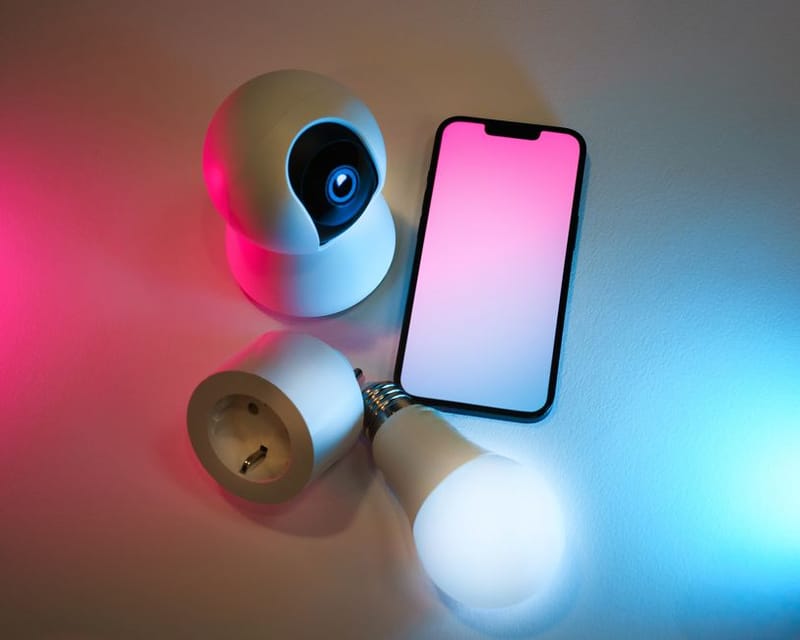

So you've installed Home Assistant. Maybe you flashed a Raspberry Pi, maybe you spun up the container on an old laptop, maybe you're running it on the cheapest mini-PC you could find on Amazon. Either way - congratulations. You've crossed the line from 'person who owns smart bulbs' to 'person who runs their own smart home server.' Slightly nerdy. Mostly excellent.
But now you're staring at the dashboard going… now what? (If the dashboard itself is part of the overwhelm, our Home Assistant dashboard setup guide covers organising it before you tackle automations.) You can see all your devices. You can poke them with your finger and they do things. But none of it feels particularly automatic yet - which is the whole point of home automation.
This guide is your kickstart: 25 Home Assistant automation examples, grouped into five categories - Lighting, Climate, Security, Energy, and Convenience - with the trigger / condition / action you need for each, and a copy-pasteable YAML snippet underneath if you want to skip the UI. They're the ones that genuinely make daily life better, not the ones that look impressive in a YouTube tutorial but you forget about after a week.
A quick promise before we dive in: every automation in this guide can be built using Home Assistant's UI editor. The YAML is there as a fast-path for people who already know what they're doing - you can ignore it entirely and build the same automation by clicking buttons. If you can use a basic spreadsheet, you can do this.
Why do automations matter more than voice control?
Here's a confession: when most people get into home automation, they spend the first few weeks shouting at smart speakers. "Alexa, turn off the kitchen light." "Hey Google, set the heating to 20." It's fun. It's novel. It's slightly embarrassing when guests visit.
But after a while, you realise something: voice control isn't actually automation. It's just a remote control that happens to listen. The real magic of Home Assistant is automations that fire without you doing anything at all - the lights that come on as you walk in, the heating that drops when you leave for work, the alert when someone left the back door open at midnight.
Good automations remove decisions from your day. The best ones, you forget exist within a fortnight. They become invisible plumbing - doing their job in the background while you live your life. That's the goal. So let's build some.
Which category do you want to jump to?
If you're scanning for a specific kind of automation, jump straight to a category:
- Lighting - motion-activated halls, sunset ramp-ups, adaptive colour temperature
- Climate - schedules, window-aware heating, humidity-triggered fans
- Security - door alerts, leak detection, doorbell cameras, vacation mode
- Energy - high-use alerts, standby detection, EV charging off-peak
- Convenience - morning routines, presence detection, daily briefings
If you're brand new, the Lighting category is the best place to start - motion-activated lights convert sceptics into believers within about three days.
What are the best lighting automations?
1. Motion-Activated Hallway Lights
The classic. Walk into the hallway, the light comes on. Walk out, it goes off. No fumbling for switches, no leaving lights blazing all night because the kids forgot. This is the automation that converts sceptics into believers within about three days.
What you need: one motion sensor (any Zigbee one - Aqara, Sonoff, IKEA - around £10-15) and a smart bulb or smart switch on the hallway light.
Trigger: motion sensor state changes to Detected. Condition: sun is below the horizon (skip it in daylight). Action: turn the hallway light on at 30% brightness, with a 1-second transition so it doesn't snap on harshly. Pair it with a second automation that turns the light off when motion clears for 2 minutes - the 'for 2 minutes' bit is critical, otherwise the light flickers off the second you stop moving.
alias: Hallway lights on motion
trigger:
  - platform: state
    entity_id: binary_sensor.hallway_motion
    to: 'on'
condition:
  - condition: sun
    after: sunset
    before: sunrise
action:
  - service: light.turn_on
    target:
      entity_id: light.hallway
    data:
      brightness_pct: 30
      transition: 1
2. Sunset Lights (Gradual Ramp-Up)
Possibly the most satisfying automation in this list and one of the easiest to set up. As the sun goes down, your downstairs lights gradually come on. No more sitting in a gloomy living room until someone notices it's dark.
Trigger: Sun event = sunset, with a -00:30:00 offset so it fires 30 minutes before actual sunset - which looks more natural than the lights snapping on as the last sliver of light disappears.
Condition: none usually, but you can add 'only when someone is home' if you don't want the lights coming on for an empty house.
Action: turn on living-room lamps, kitchen pendants, and the hallway light. Use a 300-second transition so the lights ramp up over five minutes instead of snapping on. Pair this with the Night Mode automation (in the Convenience category) to turn them all off later.
alias: Sunset lights
trigger:
  - platform: sun
    event: sunset
    offset: '-00:30:00'
action:
  - service: light.turn_on
    target:
      area_id: living_room
    data:
      brightness_pct: 70
      transition: 300
3. Welcome Lights on Door Open
A small touch, but a luxurious one: the front-door contact sensor opens, the hallway light snaps on, and (after sunset) the living-room lamps too. You walk into a house that's already expecting you.
Trigger: front-door contact sensor state changes to Open. Condition: sun is below the horizon - no point lighting the hall during the day. Action: turn the hallway light on at 60% and the living-room lamp on at 40%. Add a 5-minute timer that turns them off again afterwards if you haven't manually overridden - otherwise the lights stay on every time someone pops out to put the bins out.
If you already have presence detection wired up (see automation 21), an even nicer pattern is to skip the door sensor and trigger on the Home zone enter event instead - it fires when your phone arrives, regardless of which door you came in.
alias: Welcome lights on front door open
trigger:
  - platform: state
    entity_id: binary_sensor.front_door
    to: 'on'
condition:
  - condition: sun
    after: sunset
    before: sunrise
action:
  - service: light.turn_on
    target:
      entity_id:
        - light.hallway
        - light.living_room_lamp
    data:
      brightness_pct: 50
4. Adaptive Lighting (Colour Temperature Shifts Through the Day)
Possibly the biggest 'why didn't I do this sooner?' upgrade in this guide. If your bulbs support colour temperature (most decent smart bulbs do - Hue, IKEA Trådfri, LIFX, Wiz, the better Tuya/Lidl ones), you can shift them automatically across the day: cool white in the morning, neutral by mid-afternoon, warm and dim by 9pm. The science behind it (circadian lighting) is genuinely well-supported - it helps with sleep - and the implementation is trivial in Home Assistant.
The easiest path: install the Adaptive Lighting custom integration from HACS. Add it to your bulbs, switch it on, walk away. It handles trigger / condition / action internally and just gets on with shifting colour and brightness through the day.
If you'd rather build it manually:
Trigger: Time-pattern firing every 5 minutes.
Condition: the light(s) are currently on.
Action: set colour temperature based on time of day - 5500K in the morning, 3500K in the afternoon, 2200K (warm amber) after 9pm. The example below uses templates to calculate the value; you can swap it for fixed values in a series of if/elif choose blocks if templates aren't your thing yet.
alias: Adaptive colour temperature
trigger:
  - platform: time_pattern
    minutes: '/5'
condition:
  - condition: state
    entity_id: light.living_room
    state: 'on'
action:
  - service: light.turn_on
    target:
      entity_id: light.living_room
    data:
      color_temp_kelvin: >
        {% set hour = now().hour %}
        {% if hour < 9 %}5000
        {% elif hour < 17 %}4000
        {% elif hour < 21 %}3000
        {% else %}2200
        {% endif %}
5. Dim Living-Room Lights When the TV Turns On
Sounds frivolous until you've experienced it once. Sit down, switch the TV on, the lights fade to 20%. Press pause for a snack break, they fade back up. The kind of automation that makes guests say 'wait, what?'
Trigger: TV media-player state changes to playing (or on, depending on your integration - Sony Bravia, LG WebOS, Android TV, Chromecast and Apple TV all expose this). Condition: sun is below horizon (otherwise the room's bright anyway). Action: dim the living-room lights to 20% with a 2-second transition. Build a paired automation that brings them back up to 70% when the TV state goes to paused or off.
If you don't have a smart-TV integration, an alternative trigger is a smart plug with power monitoring on the TV - when wattage rises above 30W, the TV is on; when it drops below 10W, standby. Slightly hacky but works on any TV.
alias: Dim lights when TV starts playing
trigger:
  - platform: state
    entity_id: media_player.living_room_tv
    to: playing
condition:
  - condition: sun
    after: sunset
action:
  - service: light.turn_on
    target:
      area_id: living_room
    data:
      brightness_pct: 20
      transition: 2
What are the best climate automations?
6. Smart Thermostat Schedule
If you've integrated a smart thermostat (Hive, Nest, Tado, Heatmiser, Drayton Wiser, or any ESPHome-flashed Honeywells - Home Assistant talks to most of them), you can build a heating schedule that's far more flexible than the thermostat's own app, and combine it with other automations (presence, window state) in ways the manufacturer never imagined.
A simple but effective UK schedule looks like this:
- 06:30 weekdays: heating up to 19°C
- 08:30 weekdays: drop to 16°C (everyone's out)
- 17:00 weekdays: back up to 20°C (welcome home)
- 22:30 daily: drop to 17°C (sleeping)
- Weekend mornings: different schedule entirely (07:30 instead of 06:30, hold at 19°C longer)
Trigger: Time = 06:30 (one automation per schedule entry).
Condition: weekday.
Action: climate.set_temperature on your thermostat at target 19°C.
If you want to be cleverer, combine this with presence detection so the heating only fires up when someone's actually home (see automation 21). Saves a lot of gas on late evenings.
alias: Heating - 06:30 weekday warm-up
trigger:
  - platform: time
    at: '06:30:00'
condition:
  - condition: time
    weekday: [mon, tue, wed, thu, fri]
action:
  - service: climate.set_temperature
    target:
      entity_id: climate.living_room
    data:
      temperature: 19
7. Pause Heating When a Window Opens
One of the highest-ROI automations on the list if you have contact sensors on windows. Open a window, the radiator TRV (or the boiler call) pauses. Close the window, it resumes. Stops the absurdly common scenario of the heating running flat-out while someone airs the kitchen for half an hour.
Trigger: any window contact sensor changes to Open and stays open for 1 minute (the delay stops it firing on quick open-close cycles). Condition: the thermostat is currently calling for heat and outdoor temperature is below 15°C (no point pausing in summer). Action: set the climate entity to off (or set target temperature to 5°C, which has the same effect). Pair with a second automation that restores the previous setpoint when all window sensors return to Closed for 1 minute. Store the previous setpoint in an Input Number helper so the 'resume' automation knows what to return to.
alias: Pause heating when window opens
trigger:
  - platform: state
    entity_id:
      - binary_sensor.kitchen_window
      - binary_sensor.lounge_window
    to: 'on'
    for: '00:01:00'
condition:
  - condition: numeric_state
    entity_id: weather.home
    attribute: temperature
    below: 15
action:
  - service: climate.set_hvac_mode
    target:
      entity_id: climate.living_room
    data:
      hvac_mode: 'off'
8. Bathroom Fan on Humidity
If you've got a humidity sensor in the bathroom (Aqara temperature/humidity sensors are the obvious pick at around £15 each) and the extractor fan is on a smart switch, Home Assistant can run the fan only when it's genuinely needed - not on a dumb 15-minute timer after you press the bathroom light.
Trigger: humidity sensor goes above 70%. Condition: the fan is currently off (avoid stacking on existing runs). Action: switch the fan on. Build a paired automation that switches it off again when humidity drops below 60% - and add a maximum runtime of 30 minutes as a safety belt in case the sensor sticks.
alias: Bathroom fan on humidity
trigger:
  - platform: numeric_state
    entity_id: sensor.bathroom_humidity
    above: 70
condition:
  - condition: state
    entity_id: switch.bathroom_fan
    state: 'off'
action:
  - service: switch.turn_on
    target:
      entity_id: switch.bathroom_fan
9. Pre-Warm Bedroom Before Wake
If you've got a TRV on the bedroom radiator (or any kind of zoned heating), set it to come up half an hour before your alarm. You wake up in a room that's already pleasant rather than the December-morning gasp.
Trigger: Time = 06:00 (alarm at 06:30).
Condition: weekday + 'someone is home' + indoor bedroom temperature is below 18°C (skip warming if it's already warm enough - saves gas on mild nights).
Action: set the bedroom TRV target to 19°C with a for_duration of 1 hour, then drop back to 16°C by 08:00.
alias: Pre-warm bedroom before alarm
trigger:
  - platform: time
    at: '06:00:00'
condition:
  - condition: time
    weekday: [mon, tue, wed, thu, fri]
  - condition: numeric_state
    entity_id: sensor.bedroom_temperature
    below: 18
action:
  - service: climate.set_temperature
    target:
      entity_id: climate.bedroom_trv
    data:
      temperature: 19
10. 'Open a Window' Notification on a Summer Spike
Most UK homes don't have aircon. So in summer, the trick is opening windows at the right moment - usually first thing in the morning and after dusk, while outdoor temperature is lower than indoor. Home Assistant can watch both and tell you when to act.
Trigger: indoor temperature sensor rises above 24°C. Condition: outdoor temperature is at least 2°C lower than indoor. Action: push a notification to your phone - 'Indoor 25°C, outdoor 21°C. Open the upstairs windows now.'
Cap the rate at one notification per hour using a for: 01:00:00 condition or by setting a helper.binary_sensor lock. Otherwise it'll buzz constantly during a heatwave.
alias: Open windows - cooler outside
trigger:
  - platform: numeric_state
    entity_id: sensor.living_room_temperature
    above: 24
condition:
  - condition: template
    value_template: >
      {{ (states('sensor.living_room_temperature') | float)
         - (state_attr('weather.home', 'temperature') | float) > 2 }}
action:
  - service: notify.mobile_app_phone
    data:
      title: Open the windows
      message: >
        Indoor {{ states('sensor.living_room_temperature') }}°C,
        outdoor {{ state_attr('weather.home', 'temperature') }}°C.
What are the best security automations?
11. Door & Window Open-Too-Long Notifications
Boring on paper, genuinely useful in real life. If a door or window is open for too long - at night, when you're out, or when the heating's on - Home Assistant pings you a notification. It catches kids leaving the back door open, the cat flap pinned by accident, windows you forgot to close before going out, garage doors that didn't fully shut.
Trigger: the door/window sensor stays Open for 10 minutes. Condition: (optional) the household is Away - if so, alert immediately rather than after 10 minutes. Action: push a notification to whichever phone(s) you want. Duplicate the automation for any sensor that matters. Skip the small windows you actually leave open on purpose.
alias: Back door open too long
trigger:
  - platform: state
    entity_id: binary_sensor.back_door
    to: 'on'
    for: '00:10:00'
action:
  - service: notify.mobile_app_phone
    data:
      message: 'Back door has been open for 10 minutes'
12. Doorbell Camera Notifications With Snapshot
If you've got a video doorbell connected (Reolink, UniFi Protect, Frigate, even a Ring with the right integration), you can route motion or button-press events into Home Assistant and get notifications anywhere - with a snapshot attached. The key advantage over the manufacturer's own app is that you control where notifications go, when, and how. Mute them between 11pm and 7am. Route them to a specific phone. Play a custom sound on a smart speaker. Whatever fits your household.
Trigger: doorbell button entity changes state to On (a button press) - or motion sensor Detected if you want motion alerts too. Condition: quiet hours condition - skip overnight if you don't want notifications. Action: snapshot the camera to a local file, then notify your phone with the image attached. For motion alerts, be ready to filter heavily - bare motion alerts will buzz your phone every time a leaf blows past.
alias: Doorbell pressed - notify with snapshot
trigger:
  - platform: state
    entity_id: binary_sensor.front_doorbell
    to: 'on'
action:
  - service: camera.snapshot
    target:
      entity_id: camera.front_door
    data:
      filename: '/config/www/doorbell_latest.jpg'
  - service: notify.mobile_app_phone
    data:
      message: 'Someone at the door'
      data:
        image: /local/doorbell_latest.jpg
13. Vacation Mode (Randomised 'Someone's Home' Lights)
The 'I am definitely home, please don't burgle me' automation. When you flick on a Vacation Mode, an automation pattern that randomises lights and routines to make an empty house look occupied, toggle, Home Assistant starts mimicking normal household activity: lights coming on and off at slightly randomised times, the TV switching on for a couple of hours in the evening, blinds opening and closing. Far more effective than leaving everything dark or - worse - on a single timer that anyone watching for an evening can clock immediately.
Setup: create a Helper (Settings → Devices & Services → Helpers → Add → Toggle) called Vacation Mode. Trigger: Time-pattern firing every hour between 17:00 and 23:00. Condition: the Vacation Mode toggle is On. Action: turn on a randomly-chosen room light at a randomised brightness, after a randomised delay of 0–15 minutes. Build a couple of similar automations for different rooms so the pattern isn't identical every night. Real households are messy and irregular - your fake one should be too.
alias: Vacation mode - random living room lights
trigger:
  - platform: time_pattern
    hours: '/1'
condition:
  - condition: state
    entity_id: input_boolean.vacation_mode
    state: 'on'
  - condition: time
    after: '17:00:00'
    before: '23:00:00'
action:
  - delay:
      minutes: "{{ range(0, 15) | random }}"
  - service: light.turn_on
    target:
      entity_id: light.living_room_lamp
    data:
      brightness_pct: "{{ range(40, 80) | random }}"
14. Water Leak Detection With Auto-Shut Valve
Cheap insurance. A single leak sensor under the sink, under the dishwasher, behind the washing machine, and next to the boiler costs around £40 and can save you a four-figure claim. Add a smart water shut-off valve and it can also stop the leak before it spreads.
Trigger: any leak sensor state changes to Wet. Condition: none - leaks are always urgent. Action: push a critical-priority notification to every phone in the household, close the smart water valve (if you have one), and turn off the dishwasher / washing-machine smart plug if it's mid-cycle. Also flash a coloured smart bulb red as a visual alert in case the phone notification is missed.
alias: Water leak detected
trigger:
  - platform: state
    entity_id:
      - binary_sensor.kitchen_leak
      - binary_sensor.boiler_leak
    to: 'on'
action:
  - service: switch.turn_off
    target:
      entity_id: switch.mains_water_valve
  - service: notify.all_phones
    data:
      title: LEAK DETECTED
      message: "{{ trigger.entity_id }} is wet"
      data:
        priority: high
        ttl: 0
15. Garage Door Left Open Alert
If you've got a contact sensor or a tilt sensor on the garage door, the single most useful automation you can build with it is this one. The number of times you'll get a notification an hour after going to bed saying 'garage door has been open for 60 minutes' will surprise you. It's a forgotten-task that happens to everyone with a garage.
Trigger: garage door contact sensor state stays Open for 30 minutes. Condition: time is between 19:00 and 09:00 (only alert during evening/night - during the day you probably know it's open). Action: notify your phone, and if you've got a smart garage controller (myQ, Meross, Shelly relay wired into the door opener), include an actionable button on the notification to close it remotely.
alias: Garage door left open
trigger:
  - platform: state
    entity_id: binary_sensor.garage_door
    to: 'on'
    for: '00:30:00'
condition:
  - condition: time
    after: '19:00:00'
    before: '09:00:00'
action:
  - service: notify.mobile_app_phone
    data:
      message: 'Garage door has been open for 30 minutes'
What are the best energy automations?
16. High Power-Use Alerts
If you have any kind of smart energy monitoring - a smart-meter integration, a Shelly EM, individual smart plugs with power monitoring - you can set up alerts when something's drawing way more power than it should. Catches things like: the immersion heater being left on, an electric heater that didn't switch off, a faulty fridge running constantly, or just a sudden spike that suggests something weird is happening.
Trigger: whole-house power sensor reads above 4000W for 5 minutes. Condition: none usually - high sustained draw is worth knowing about. Action: notify your phone with the current reading: 'Whole house drawing 4.2kW for over 5 minutes'.
Tune the threshold to your house. Most UK homes idle around 200–400W and peak at 2–3kW during cooking or hot showers. If you regularly spike above 4kW for sustained periods, something's worth investigating.
alias: High power alert
trigger:
  - platform: numeric_state
    entity_id: sensor.house_power
    above: 4000
    for: '00:05:00'
action:
  - service: notify.mobile_app_phone
    data:
      message: >
        Whole house drawing
        {{ states('sensor.house_power') }}W for over 5 minutes.
17. Detect 'Standby' Power Vampires
Every smart plug with power monitoring is a tiny detective. Set up an automation to flag any plug that's drawing more than 5W of standby power for over six hours - that's the TV, the games console, the soundbar, the office monitor - all the things that should be off but aren't. Combine with a paired automation that switches them off automatically.
Trigger: smart-plug power sensor reads between 1W and 20W (i.e. standby range) for 6 hours. Condition: no one is currently using the device (e.g. the TV media-player entity is off). Action: notify your phone - 'TV has been drawing 8W of standby power for 6 hours. Switch off the plug?' with an actionable button. Or just go full Marie Kondo and auto-cut the plug.
alias: TV standby power detected
trigger:
  - platform: numeric_state
    entity_id: sensor.tv_plug_power
    above: 1
    below: 20
    for: '06:00:00'
condition:
  - condition: state
    entity_id: media_player.living_room_tv
    state: 'off'
action:
  - service: switch.turn_off
    target:
      entity_id: switch.tv_plug
18. EV Charging on Cheap-Rate Hours
If you're on Octopus Intelligent, Octopus Go, a smart-meter tariff with cheap overnight electricity rates for EV charging and storage,, EDF GoElectric, or any time-of-use tariff, Home Assistant can switch your EV charger on only during the cheap-rate window. The EV tariff calculator on our sister site lays out the savings if you don't already have a tariff in mind.
Trigger: Time = 00:30 (start of Octopus Go cheap window). Condition: the EV is plugged in (charger entity reports Connected) and the battery is below your target SOC (e.g. 80%). Action: switch the charger smart plug on. Build a paired off-automation at 04:30 (end of cheap window).
If you've got an Octopus Intelligent integration (third-party HACS one exists), you can instead trigger on the smart-charge planned slots attribute, which is more flexible - the slots shift around based on grid demand, not just clock time.
alias: EV cheap-rate charge start
trigger:
  - platform: time
    at: '00:30:00'
condition:
  - condition: state
    entity_id: binary_sensor.ev_plugged_in
    state: 'on'
  - condition: numeric_state
    entity_id: sensor.ev_battery
    below: 80
action:
  - service: switch.turn_on
    target:
      entity_id: switch.ev_charger
19. Solar-Surplus Diversion (Switch on Loads When PV Exports)
If you've got solar PV and a half-decent inverter integration (SolaX, GivEnergy, Sunsynk, Solis, Enphase - most are now in Home Assistant), you can divert spare export into a useful load instead of sending it to the grid for buy-back peanuts. Classic targets are the immersion heater, the EV charger on a low-current mode, or just running the dishwasher / washing machine.
Trigger: house export power sensor reads above 1500W for 10 minutes. Condition: the immersion heater plug is currently off and water tank temperature is below 55°C. Action: switch the immersion heater on. Paired automation switches it off when either the tank reaches target temperature or export drops below 200W.
alias: Solar surplus - heat water
trigger:
  - platform: numeric_state
    entity_id: sensor.house_export
    above: 1500
    for: '00:10:00'
condition:
  - condition: state
    entity_id: switch.immersion_heater
    state: 'off'
  - condition: numeric_state
    entity_id: sensor.hot_water_temperature
    below: 55
action:
  - service: switch.turn_on
    target:
      entity_id: switch.immersion_heater
20. Auto-Off Idle Smart Plugs Overnight
Belt-and-braces energy automation. Late at night, sweep across every smart plug, check which ones are below their 'in use' threshold, and switch them off. Catches the second monitor, the desk lamps, the chargers, the office printer - anything left on at the end of a working day.
Trigger: Time = 23:30.
Condition: none - sweep nightly regardless.
Action: loop over a group containing the plugs you want included, and switch off each one whose power reading is below the standby threshold (5W typical for chargers, 20W for monitors). Use a Choose block or a repeat.for_each if you're comfortable with the slightly more advanced syntax.
alias: Nightly idle plug sweep
trigger:
  - platform: time
    at: '23:30:00'
action:
  - service: switch.turn_off
    target:
      entity_id:
        - switch.office_monitor
        - switch.office_printer
        - switch.desk_lamp
What are the best convenience automations?
21. Good Morning Routine
The good morning routine is the automation equivalent of having a really competent butler. At a set time on weekdays, your house wakes up gently around you: bedroom lights fade up to 30%, the kitchen light flicks on, the heating bumps up two degrees, and your smart speaker reads out the weather and your calendar.
No phone alarm panic. No stumbling around in the dark. Just a quiet, civilised start.
Trigger: Time = 06:45 (or whenever you want to wake up). Condition: weekday. Action: multiple actions in sequence - bedroom lights up to 30% with a 120-second transition (slow, dawn-style wake-up), kitchen light on, thermostat to 20°C, and (if you have a smart speaker integration) play a short news briefing or daily weather summary.
alias: Good morning routine
trigger:
  - platform: time
    at: '06:45:00'
condition:
  - condition: time
    weekday: [mon, tue, wed, thu, fri]
action:
  - service: light.turn_on
    target:
      entity_id: light.bedroom
    data:
      brightness_pct: 30
      transition: 120
  - service: light.turn_on
    target:
      entity_id: light.kitchen
  - service: climate.set_temperature
    target:
      entity_id: climate.living_room
    data:
      temperature: 20
22. Night Mode (One-Touch Goodnight)
The opposite of the good morning routine. One trigger and the entire house puts itself to bed: all lights off downstairs, smart locks engage, thermostat drops to 17°C, charging plugs cut power, any TVs left on get switched off. The clever bit: you can trigger this from a single button press, a voice command, or automatically at a set time. A button is the most satisfying - there's something deeply pleasing about pressing one button to put the entire house to sleep.
Setup: create a Scene first (Settings → Scenes → Add Scene). Call it Goodnight. Toggle every light/device into the state you want for night-time. Save. Trigger: whichever fires the automation - a smart button (Aqara, Hue, IKEA), a time (23:00), or a voice command. Action: activate the Goodnight scene. Using a Scene rather than listing every device individually means you can tweak what 'goodnight' means later by editing the Scene, without rewriting the automation.
alias: Activate goodnight
trigger:
  - platform: state
    entity_id: sensor.bedroom_button
    to: single
  - platform: time
    at: '23:00:00'
action:
  - service: scene.turn_on
    target:
      entity_id: scene.goodnight
23. Presence Detection: Away & Home Modes
This is where Home Assistant starts feeling genuinely intelligent. Using your phone's location (via the Home Assistant Companion app), the house can know when you've left and when you're coming home - and react accordingly. Two automations make this work.
Away mode (when you leave):
- Trigger: Person → your name → leaves Home zone
- Condition: everyone in the household is also away (Group state is not_home)
- Action: turn off all lights, drop thermostat to 16°C, notify 'House set to Away'
Home mode (when you return):
- Trigger: Person → your name → enters Home zone
- Action: turn on hallway light (if dark), set thermostat back to 20°C, notify 'Welcome home'
The Group / household-wide condition is the part beginners forget - without it, Away mode fires the second one person leaves while the rest of the family is still home, which is annoying.
alias: Set Away mode
trigger:
  - platform: state
    entity_id: group.household
    to: not_home
action:
  - service: light.turn_off
    target:
      entity_id: all
  - service: climate.set_temperature
    target:
      entity_id: climate.living_room
    data:
      temperature: 16
24. Auto-Start the Robot Vacuum When the House is Empty
If you've got a robot vacuum that talks to Home Assistant (Roborock, Mi, Roomba via the right integration, Dreame - most do), the most useful automation is starting it once everyone leaves the house. No more 'sorry, the vacuum is doing its thing' when a video call lands. By the time you're back, the floors are done.
Trigger: Group Household state changes to not_home.
Condition: weekday + time is after 09:00 (don't start it at 6am when one person is away on a work trip).
Action: call vacuum.start on the vacuum entity.
Pair this with a 'pause if anyone returns' automation, in case a child gets home early - robot vacuums and small dogs don't always mix.
alias: Vacuum when house empty
trigger:
  - platform: state
    entity_id: group.household
    to: not_home
condition:
  - condition: time
    weekday: [mon, tue, wed, thu, fri]
    after: '09:00:00'
action:
  - service: vacuum.start
    target:
      entity_id: vacuum.living_room
25. Morning Briefing on a Smart Speaker
A small joy. Walk into the kitchen at 07:00 on a weekday, the smart speaker greets you with the weather, your first calendar event, your commute time, and (if you've wired up an RSS feed integration) the day's headline news in a single short briefing. Sounds futuristic. Easier to build than you'd expect.
Trigger: kitchen motion sensor detects movement.
Condition: time is between 06:30 and 09:00 + the briefing hasn't already played today (use an input_boolean helper as a once-per-day lock).
Action: call tts.cloud_say on your smart speaker with a templated message that pulls in weather, calendar, and your commute estimator. Set the helper to On to lock it for the day, and reset at midnight.
alias: Kitchen morning briefing
trigger:
  - platform: state
    entity_id: binary_sensor.kitchen_motion
    to: 'on'
condition:
  - condition: time
    after: '06:30:00'
    before: '09:00:00'
  - condition: state
    entity_id: input_boolean.briefing_played_today
    state: 'off'
action:
  - service: tts.cloud_say
    target:
      entity_id: media_player.kitchen_speaker
    data:
      message: >
        Good morning. It's {{ states('weather.home') }}, currently
        {{ state_attr('weather.home', 'temperature') }} degrees.
        Your first meeting is at
        {{ state_attr('calendar.work', 'start_time') }}.
  - service: input_boolean.turn_on
    target:
      entity_id: input_boolean.briefing_played_today
What does the r/homeassistant community actually use most?
If you spend any time on r/homeassistant - and most people building automations eventually do - you'll see a pretty consistent pattern in what the experienced users actually rely on day-to-day. The community keeps coming back to the same themes when threads ask 'what are your most-used automations?'
Three patterns surface repeatedly:
1. Motion-driven lighting is universally the first 'wow' automation. Across multiple long-running threads, motion-activated hallway and bathroom lights - exactly the automations in this guide as #1 and #4 - are cited as the first ones people set up and the ones they'd miss the most if they had to give them up. The phrase that recurs is some version of 'I haven't touched a light switch in years.'
2. Notifications win on quietly catching mistakes. Door-left-open, garage-left-open, freezer-warmer-than-it-should-be, washing-machine-finished. The community consensus is that the most-valued automations are usually the ones you don't see most of the time - they only speak up when something needs your attention. The aspirational 'house that runs itself' version is often less useful than the boring 'house that pings you when something's wrong' version.
3. The classic warning: avoid building automations for things you'd happily do manually. Almost every thread about regret has a version of 'I automated X and it broke for two days and I realised I could just press a button'. The automations that survive are usually for things that are repetitive (motion lights, schedules) or things you genuinely forget (door alerts, garage alerts) - not for things you actively enjoy doing.
If you're in the early-build phase, lean towards automations from those three buckets. They're the ones the experienced users still have running five years in.
Sources: discussions in r/homeassistant (example thread index). We've summarised broad community patterns rather than quoted individuals.
What are the common beginner gotchas?
| Mistake | Symptom | Fix |
|---|---|---|
| No 'for' duration on motion-sensor 'off' triggers | Lights flicker off the moment you stop moving - sit still for a minute and you're in the dark | Add for: '00:02:00' to the off-trigger so the sensor has to be clear for 2 minutes before lights cut |
| Forgetting a 'sun is below horizon' condition on motion lights | Lights fire at midday and confuse everyone | Add condition: sun, after: sunset, before: sunrise to all night-only lighting automations |
| Away mode firing when one person leaves the house | Heating drops while the rest of the family is still home and freezing | Trigger on the household Group state going not_home, not on any one individual's leaves event |
| Building 30 automations on day one | You can't remember what fires when; one breaks and you can't tell which | Add one at a time, run it for a week, then add the next. Use clear naming - Hallway lights on motion beats Automation 17 |
Using notify actions for everything |
You start ignoring all notifications within a fortnight | Reserve push notifications for genuinely urgent things - open doors, leaks, energy spikes; everything else can be a quiet Logbook entry |
| Not testing the trigger before going live | Automation runs only at the worst possible moment and you can't figure out why | Use the Run button next to each automation (it tests Actions); for full Trigger testing, manipulate the trigger entity manually and watch the Logbook |
Templating math against an entity that occasionally reports unknown |
Automation fails silently with a template error once a day |
Wrap numeric reads in {{ states('sensor.foo') | float(0) }} so startup and brief sensor unavailability return 0 instead of crashing |
| Hard-coding device names everywhere | Renaming a device breaks 15 automations and you discover them one by one over a fortnight | Use areas and target.area_id where possible - renaming a device doesn't change its area, and area-targeted automations keep working |
What should you set up next?
Once you've got even half of these 25 running smoothly, you've crossed an invisible line: your house is now genuinely automated. From here, the next steps depend on your priorities:
- Energy obsessives - dive into the Energy Dashboard, set up per-circuit monitoring, and look at the budget smart-home setup for low-cost sensor recommendations
- Security-minded - add leak sensors, smoke detectors, and integrate with a siren or smart-water-valve
- Lighting people - explore Adaptive Lighting (HACS), light groups, and per-room scenes
- Voice-control fans - set up Local Voice with a Home Assistant Voice Preview Edition, or a wired Atom Echo
And if you haven't already, take a look at our Smart Home 101 series for the broader context, or Choosing Your Smart Home Platform if you're still deciding whether Home Assistant is the right system for you.
The big secret of Home Assistant is that the platform itself is straightforward. The hard bit is patiently figuring out which automations actually improve your life and which just sound cool on Reddit. The ones in this list are the proven, not-just-cool ones. Start there. Build the rest as you discover what your house actually needs.
How many Home Assistant automations should I start with?
Do I need to know YAML to use Home Assistant automations?
What's the cheapest way to get started with Home Assistant?
Will my Home Assistant automations break if my internet goes down?
What happens if an automation goes wrong?
Can I share automations between Home Assistant installs?
Which automations save the most energy?
Want to go deeper into smart home automation?
Follow our Smart Home 101 series - start at the beginning if you're new to home automation, or jump to platform comparison if you're picking a system.