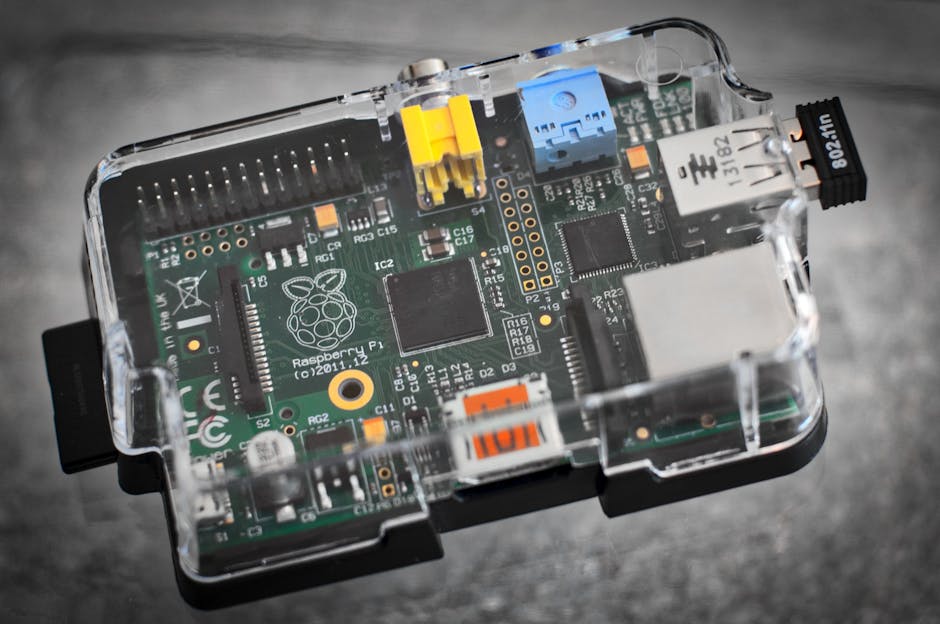
Home Assistant on a Raspberry Pi: Complete Setup Guide
Set up Home Assistant on a Raspberry Pi 5 from scratch — hardware picks, flashing HAOS, first boot, adding devices, and your first automation. UK pricing.
Home Assistant on a Raspberry Pi: Complete Setup Guide
From bare board to first automation in an afternoon — hardware, HAOS, devices, and the gotchas nobody warns you about.
If you've decided to take the smart home plunge with Home Assistant, the Raspberry Pi is still the cheapest, most popular, and most flexible way to run it. A Pi 5 with an NVMe drive will happily handle 100+ devices, dozens of automations, voice assistants, energy dashboards, and the kitchen sink — all for well under £150 of one-off hardware and roughly the energy cost of a phone charger.
This is the home assistant raspberry pi setup guide I wanted when I started: every decision explained, every step in order, and the boring-but-critical bits (USB-C power supplies, microSD horror stories, Z2M permissions) called out before they bite. By the end you'll have HAOS running, your first device paired, and a real automation triggering in the real world.
If you haven't yet read Getting Started with Home Assistant, start there — it covers the why. This guide is the how.
Which Raspberry Pi Should You Buy?
The short answer: Raspberry Pi 5 with 8GB of RAM. It is the model worth buying in 2026 if you want to install once and forget for the next four years.
Home Assistant is not a heavyweight app on its own, but the moment you start adding the things people actually want — Zigbee2MQTT, ESPHome, Frigate for camera AI, the energy dashboard, voice — RAM and CPU matter. The Pi 5 is roughly 2–3× faster than the Pi 4 in real workloads, and the 8GB model gives you headroom for everything HA can throw at it.
Here's the honest hierarchy of options:
Pi 5 (8GB) — recommended
Best long-term choice. Fast enough for cameras, voice, and 100+ devices. Pair with an NVMe SSD via the official M.2 HAT and you have a system that will outlast most off-the-shelf smart hubs.
Pi 5 (4GB) — fine
Saves around £15 and is plenty for a typical home of lights, sensors, and a Zigbee dongle. Upgrade later only if you start running cameras or LLM-based voice.
Pi 4 (4GB) — acceptable
Still works well, especially if you already own one. You'll feel the slowness during updates and reboots, but day-to-day it is perfectly usable.
Pi 3 / Pi Zero — skip
Too slow for modern HA. The OS will install but updates take forever and add-ons like Frigate are off the table. Save yourself the frustration.
The Full Shopping List
Buy these together and you will not get stuck halfway through setup waiting for an Amazon delivery. Approximate UK prices:
- Raspberry Pi 5 (8GB) — around £80
- Official Raspberry Pi 5 power supply (27W USB-C) — around £14. Do not skip this. Generic chargers cause undervoltage warnings and mysterious crashes.
- Active cooler or case with fan — around £10. The Pi 5 throttles without active cooling once it warms up.
- NVMe SSD (256GB) + Pi 5 M.2 HAT — around £40 combined. Optional but transformative; HAOS feels twice as snappy from NVMe.
- High-endurance microSD card (32GB, A2 rating) — around £10. Either as your main boot drive or for the initial install before moving to NVMe.
- Ethernet cable — strongly preferred over Wi-Fi for the server itself. A wired connection makes everything feel more reliable.
- A Zigbee or Z-Wave USB stick — see the device section below. Around £25–£40.
Total: roughly £140 with NVMe, £100 without. That is a one-off cost. The running cost is around £15 per year in electricity.
Step 1: Flash Home Assistant OS to Your Drive
Home Assistant OS (HAOS) is the recommended install method. It is a tiny Linux distribution built solely to run Home Assistant — no other apps, no other complexity. You do not need to install Ubuntu, Docker, or anything else first.
The official Raspberry Pi Imager handles this for you, including downloading HAOS and writing it to your card or NVMe.
Install Raspberry Pi Imager
Download from raspberrypi.com/software on your laptop or desktop. It is free, runs on Windows, macOS, and Linux.
Plug in your microSD or NVMe drive
Use a USB SD card reader, or a USB-to-NVMe enclosure if you are flashing the SSD directly. The Imager will detect it as a target device.
Choose the device
Click 'Choose Device' and pick Raspberry Pi 5 (or Pi 4 if that is what you have). This filters the OS list to compatible images.
Choose the OS
Click 'Choose OS', scroll to 'Other specific-purpose OS' → 'Home assistants and home automation' → 'Home Assistant' → pick the Pi 5 (or Pi 4) image. The Imager will download it for you.
Choose storage and write
Pick your card or SSD, click Next, then Write. You can skip the OS customisation prompt — HAOS handles its own setup. Writing takes 3–5 minutes, then the Imager verifies.
Step 2: First Boot and Onboarding
Slide the freshly flashed card or SSD into the Pi, plug in Ethernet, and connect the power supply last. The activity LED will blink furiously for a couple of minutes — that is HAOS expanding the filesystem and starting up.
You do not need a keyboard, monitor, or mouse plugged into the Pi. The whole setup happens through a web browser on your laptop or phone.
Wait 5–10 minutes on first boot
HAOS downloads the latest Home Assistant version and bootstraps itself. Be patient — this only happens once. If you have a monitor plugged in, you will see a console showing IP address details.
Open homeassistant.local:8123
On any device on the same network, type http://homeassistant.local:8123 into a browser. If that does not resolve, find the Pi's IP from your router's DHCP page and use http://<that-ip>:8123 instead.
Create your user account
Pick a name and a strong password. This account has admin rights — you will use it every day, so keep the password somewhere safe.
Set your location
Home Assistant uses your location for sunrise/sunset automations and weather. The 'Detect' button usually gets it close enough; tweak the pin if your house is on the wrong side of the road.
Let HA discover devices
On the final onboarding screen, HA scans your network for compatible devices — Hue bridges, Sonos, smart TVs, printers, and more. Approve anything you recognise; you can add the rest later.
You should now be staring at the default Home Assistant dashboard: a sparse but functional grid of cards. Bookmark this page on every device. The mobile app (iOS and Android) is genuinely excellent and worth installing next — it gives you remote control, presence detection, and notifications.
Step 3: Add Your First Smart Device
This is where the magic starts. The 'right' first device depends on what you already own and what you want to do, but here are the three most common starting points.
Option A: A Wi-Fi Device You Already Own
If you have a Philips Hue bridge, a TP-Link Tapo plug, or a Sonos speaker on your network, HA has almost certainly already discovered it during onboarding. Go to Settings → Devices & Services, look in the Discovered section at the top, and click Configure next to anything you want to add. Most integrations need nothing more than a button press on the bridge or a one-time Tapo login.
This is the easiest possible first win. Lights, plugs, and speakers usually appear within seconds.
Option B: A Zigbee Device via a USB Dongle
For sensors, buttons, and bulbs that are not on Wi-Fi, Zigbee is the workhorse of Home Assistant. Buy a Sonoff ZBDongle-E or a Conbee II (around £25–£35), plug it into a USB port on the Pi, and HA will offer to set up the Zigbee Home Automation (ZHA) integration automatically.
If you have not already, read Matter vs Zigbee vs Z-Wave vs Thread — it explains why Zigbee is still the most practical protocol for cheap, battery-powered sensors.
Once ZHA is running, click Add Device, then put your Zigbee gadget into pairing mode (usually a long press on a button, or pulling the battery tab on a sensor). Within seconds it will appear with full controls — temperature, battery, motion state, whatever the device exposes.
Option C: A Z-Wave Device via a USB Dongle
Z-Wave is the slightly older, slightly more expensive cousin of Zigbee. It tends to have better range and is the dominant protocol for door locks and high-quality dimmers. The setup process mirrors Zigbee: plug in a Z-Wave stick (Aeotec Z-Stick 7 is the popular pick), let HA install Z-Wave JS, and pair devices one at a time.
If you are buying fresh sensors today and your house is not enormous, default to Zigbee. It is cheaper and the device ecosystem is bigger.
Step 4: Build Your First Automation
An automation is just if this, then that — and HA gives you a visual editor that means you never have to write YAML unless you want to. Let's build a classic: turn on a light when motion is detected after sunset.
You'll need a motion sensor (Aqara, IKEA Tradfri, or any Zigbee PIR — around £15) and any controllable light. Pair the motion sensor as in Step 3 first.
Open the automation editor
Settings → Automations & Scenes → Create Automation → Create new automation → Start with an empty automation.
Add a trigger
Click 'Add trigger' → Device → pick your motion sensor → 'Motion detected'. This fires the moment the sensor sees movement.
Add a condition
Click 'Add condition' → Sun → 'After sunset, before sunrise'. This stops the light coming on in broad daylight.
Add an action
Click 'Add action' → Device → pick your light → 'Turn on' (you can also set brightness). Save the automation with a sensible name like 'Hallway motion light'.
Test it
Walk past the sensor. The light should come on within a second. If it does not, click the three-dot menu on the automation → 'Run' to force-trigger and check the trace for errors.
That is your first automation. The pattern — trigger, condition, action — covers maybe 80% of every automation you'll ever write. Once you're comfortable, 10 Home Assistant Automations Every Beginner Should Try walks through the next nine you will actually use every day.
Common Gotchas (and How to Avoid Them)
Almost everyone hits at least one of these in their first month. Knowing they exist makes them ten minutes of inconvenience instead of a full Saturday.
Why is HA showing 'Undervoltage detected' warnings?
My microSD is corrupting every few months. What's wrong?
Should I run Home Assistant in Docker on a generic Linux box instead?
Why won't homeassistant.local:8123 load?
How do I back this up?
Can I move from microSD to NVMe later?
What to Do Next
You now have a working Home Assistant server, a paired device, and a real automation. Here is the natural sequence of next steps, roughly in the order people tend to take them:
- Install the mobile app. It unlocks presence detection (the Pi knows when you arrive home), push notifications, and a much nicer remote interface than the browser.
- Add 5–10 more devices. Lights and motion sensors compound — every new sensor makes existing automations smarter.
- Build a dashboard. The default UI is fine, but you'll quickly want a custom dashboard. The Sections view (introduced in 2024) is the modern starting point.
- Layer in voice control. If you already use Alexa or Google, the Smart Home Platforms Guide explains how to bridge them with HA. If you want full local voice, look at the official Home Assistant Voice Preview Edition hardware.
- Get a UPS. A £40 mini-UPS keeps the Pi alive through brief power cuts. Worth it once your home depends on automations to function.
You now own the most powerful smart home platform in the world, and it lives in a metal box the size of a credit card. Welcome aboard.
Want the bigger picture?
If you're new to smart homes in general, the Smart Home 101 series walks you through every decision before the hardware shopping begins.