Local LLM on Raspberry Pi 5: 2026 UK Practical Guide
Run a local LLM on a Raspberry Pi 5 with Ollama. UK guide: realistic benchmarks, power costs, hardware kits, and Home Assistant voice setup.
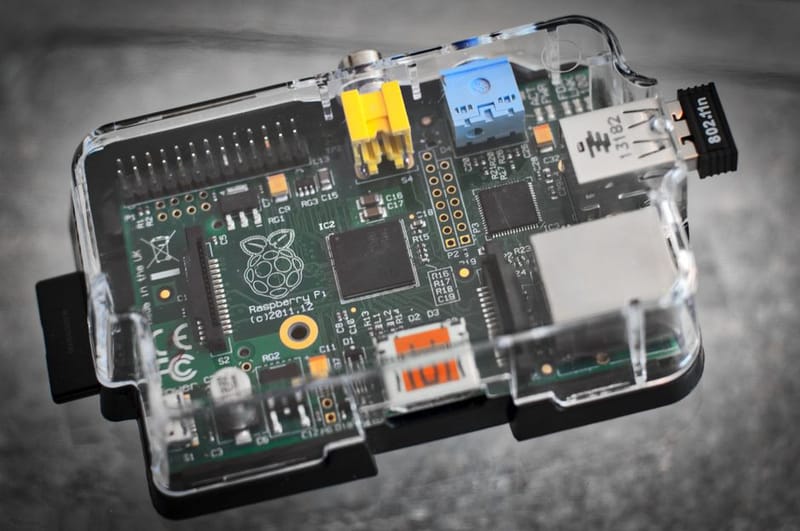

Running a local LLM on a Raspberry Pi, a popular low-cost single-board computer often used for tinkering and home servers, 5 is no longer a curiosity project. With Ollama, a Pi 5 8GB and a sensible model choice, you can host a private chat endpoint on your own network for the cost of a curry - and well under a pound a month to keep it powered. This guide covers what actually works, what doesn't, and the honest performance you can expect from £75 of UK-bought hardware.
Why run an LLM locally on a Pi?
The case for hosting your own language model on a Raspberry Pi comes down to three things: privacy, cost, and control. Your prompts never touch a third-party server, you avoid pay-per-token bills, and you can wire the model into local tools - Home Assistant, a personal note system, a coding helper - without worrying about an API key being rotated or a free tier disappearing.
A Pi 5 is not the fastest machine you could pick. It is, however, the cheapest box capable of running modern 3-billion-parameter models at a usable speed, with idle power low enough that running it 24/7 costs less than a pint each month. The trade-off is patient generation: a Pi answers in measured paragraphs, not real-time streams.
Which Raspberry Pi do you actually need?
Skip the 4GB model. Modern quantised LLMs need 3–6GB of RAM for the model weights plus headroom for the context window and the operating system. The Pi 5 8GB is the entry point that runs everything from TinyLlama through to Llama 3.2 3B comfortably. The Pi 5 16GB (launched January 2025) is the choice if you want to occasionally load an 8B-parameter model - slow but feasible - or if you want lots of context window for document Q&A.
Pi 4 still works but is around 30–40% slower per token because of the older Cortex-A72 cores and missing NEON-FP16 instructions used by recent llama.cpp builds. If you already own one, fine; if you're buying, the £15 saving is not worth it.
Storage matters more than people expect
Model files are large - Llama 3.2 3B in Q4_K_M is about 2.0GB, Phi-3 Mini 3.8B is around 2.3GB - and SD card random-read speeds throttle the first load of every session. An NVMe SSD, a high-speed solid-state drive using the NVMe protocol over a PCIe interface, on the official Pi M.2 HAT cuts cold-start time from 8–15 seconds down to 1–2 seconds. For a chat endpoint that idles between queries, it's the single biggest quality-of-life upgrade after the active cooler.
What you'll spend in the UK
Typical retail at Pimoroni, The Pi Hut, and RS Components as of early 2026. Prices include VAT but exclude shipping. Stock is reliable for the 8GB SKU; 16GB occasionally sells through.
Raspberry Pi 5 LLM-ready kit (UK)
- Pi 5 8GB board
- £75–80
- Pi 5 16GB board
- £105–115
- Official 27W USB-C PSU
- £12
- Active cooler
- £5–7
- Case (passive or vented)
- £10–15
- 256GB NVMe SSD + M.2 HAT
- £35–45
- Typical 8GB build total
- £135–160
Models that actually work on a Pi 5
The good models for Pi-class hardware all share one trait: they were designed or fine-tuned with edge inference in mind. Pure parameter count is misleading - a well-trained 3B model often beats a clumsier 7B at the same quantisation level.
The shortlist
Llama 3.2 3B (Meta) - the default recommendation. Strong general reasoning, good UK English handling, runs at a usable speed on Pi 5 8GB. Pull with ollama pull llama3.2:3b.
Phi-3 Mini 3.8B (Microsoft) - punches above its weight on factual recall and coding. Slightly slower than Llama 3.2 3B but answers tend to be more precise. ollama pull phi3:mini.
Qwen 2.5 1.5B (Alibaba) - surprisingly capable for its size, much faster than the 3B options. Good for tool-use and structured output. ollama pull qwen2.5:1.5b.
TinyLlama 1.1B - the speed champion. Use it when latency matters more than quality, like a voice assistant that needs to respond quickly. ollama pull tinyllama.
Gemma 2 2B (Google) - strong instruction-following, MIT-friendly licence, decent middle ground between TinyLlama and Llama 3.2. ollama pull gemma2:2b.
What to avoid on a Pi 5 8GB: Llama 3 8B, Mistral 7B, anything labelled "70B". They will technically load on the 16GB SKU using heavy quantisation but generation drops below one token per second and the experience is painful.
Realistic performance: tokens per second
Independent benchmarks across the community converge on the numbers below for a Pi 5 8GB running Pi OS 64-bit with a stock active cooler and the standard Ollama build (Q4_K_M quantisation, default context size). These are CPU-only - VideoCore VII does not accelerate matmuls in current llama.cpp builds, so adding a GPU isn't an option.
| Model | Size on disk | Pi 5 8GB (tok/s) | First-token latency |
|---|---|---|---|
| TinyLlama 1.1B Q4 | 0.6 GB | 12–15 | ~1s |
| Qwen 2.5 1.5B Q4 | 0.9 GB | 8–10 | 1–2s |
| Gemma 2 2B Q4 | 1.6 GB | 6–8 | 2–3s |
| Llama 3.2 3B Q4 | 2.0 GB | 4–6 | 3–4s |
| Phi-3 Mini 3.8B Q4 | 2.3 GB | 3–5 | 3–5s |
| Llama 3.1 8B Q4 (16GB Pi only) | 4.7 GB | 1.5–2.5 | 8–12s |
For context: ChatGPT-3.5 streams responses at roughly 30–60 tokens per second. A Pi 5 running Llama 3.2 3B is two to ten times slower. That sounds bad until you remember it's running on 7 watts at the end of your hallway, with no monthly bill.
Install Ollama in five steps
Flash Pi OS Lite (64-bit)
Use Raspberry Pi Imager and choose Pi OS Lite 64-bit. The desktop edition wastes RAM you'd rather give to the model. Set hostname (e.g. pi-llm), enable SSH, and configure your Wi-Fi or wait to plug in Ethernet.
First boot and update
SSH in and run sudo apt update && sudo apt full-upgrade -y. Reboot. This typically pulls the latest kernel and any active-cooler firmware patches.
Install Ollama
Run curl -fsSL https://ollama.com/install.sh | sh. The script detects ARM64 and pulls the right binary. Ollama installs as a systemd service that starts on boot - no extra work to make it persistent.
Pull your first model
Run ollama pull llama3.2:3b. The first download is around 2GB. Then test interactively with ollama run llama3.2:3b and ask it something.
Expose Ollama to your network (optional)
By default Ollama only listens on localhost. To accept connections from other devices on your LAN, create /etc/systemd/system/ollama.service.d/override.conf with Environment="OLLAMA_HOST=0.0.0.0" then sudo systemctl daemon-reload && sudo systemctl restart ollama. The API is now reachable at http://pi-llm.local:11434.
What it actually costs to run 24/7 in the UK
A Pi 5 draws around 3 watts at idle, climbs to 7–9 watts during active inference, and peaks briefly around 12 watts when all four cores are flat out. Average it across a setup that handles a handful of voice queries an hour plus the odd LAN chat, and you land at roughly 5 watts averaged across the day.
At a UK Energy Price Cap unit rate of around 25p per kWh (the exact figure shifts every three months - check Ofgem's current cap), that works out at:
5W × 24h × 30 days ÷ 1000 = 3.6 kWh/month × £0.25 = around 90p per month.
That's the entire running cost of a private inference endpoint. By comparison, leaving an old desktop running idle 24/7 costs £6–10 per month before you've even invoked the model. The Pi's electricity-cost advantage is the second-biggest argument for using one, after the privacy story.
Pi 5 vs Mac mini M4 vs a gaming PC
If you outgrow a Pi 5, the realistic next steps are an Apple Mac mini M4, a dedicated mini-PC with a discrete GPU, or repurposing a desktop tower. Each makes different trade-offs.
| Platform | Up-front (UK) | Llama 3 8B speed | Idle power | Monthly electricity* |
|---|---|---|---|---|
| Pi 5 8GB build | ~£135 | n/a (use 3B) | 3W | £0.50–1.00 |
| Pi 5 16GB build | ~£165 | 1.5–2.5 tok/s | 3W | £0.50–1.00 |
| Mac mini M4 (16GB) | ~£599 | 30–50 tok/s | 5W | £1.50–3.00 |
| Mini-PC + RTX 3060 12GB | ~£500 (used) | 50–80 tok/s | 30–50W | £6.00–12.00 |
| Repurposed desktop tower | £0 (existing kit) | varies | 40–80W | £8.00–15.00 |
*Mixed usage, 24/7 uptime, 25p/kWh.
For most home setups the Pi wins on total cost of ownership unless you specifically need the speed for code completion, large-context document Q&A, or a multi-user setup. Even there, an M4 Mac mini is the sensible upgrade - silent, fast, and only £1–3/month to run. The gaming-GPU path makes sense only if you already own the box.
Access it from anywhere with Tailscale
Without remote access, a local LLM is only useful when you're sat on the home network. Tailscale solves this in about ten minutes: it gives every device in your account a stable private IP and DNS name on an overlay network, with no port-forwarding, no dynamic DNS, and no public exposure of port 11434.
Setup
On the Pi: curl -fsSL https://tailscale.com/install.sh | sh followed by sudo tailscale up. The command prints a one-time login URL - open it on a laptop, sign in, and the Pi joins your Tailnet.
On your phone or laptop, install the Tailscale app and sign in to the same account. The Pi is now reachable at http://pi-llm:11434 - or its 100.x.y.z Tailscale IP - from any other device on the Tailnet, anywhere in the world. The free tier covers up to 100 devices and 3 users, which is plenty for a household.
Don't expose Ollama directly to the public internet via port-forwarding. It has no built-in auth and no rate limiting. Tailscale's WireGuard tunnel is the simple, safe answer.
Wire it into Home Assistant Voice Assistant
Since the Home Assistant 2025.1 release, Ollama is a first-class conversation agent. You can route Voice Assistant queries to your Pi-hosted model instead of OpenAI - keeping the entire voice pipeline (wake word, speech-to-text, LLM, text-to-speech) on your own hardware.
Connecting Ollama to HA
In Home Assistant, open Settings → Devices & Services → Add Integration and search for Ollama. For the URL, enter http://pi-llm:11434 (or the Tailscale name if HA is on a different host). Pick the model you pulled earlier from the dropdown - Llama 3.2 3B is a good starting point for voice. Tweak the system prompt to constrain the assistant to your house.
Routing voice queries
Open Settings → Voice Assistants, edit your assistant, and set the conversation agent to Ollama. The default HA conversation engine handles structured intents ("turn off the lounge lamp") while Ollama fields the open-ended questions ("what should I have for dinner that uses what's in the fridge?"). The handoff is built into HA - you don't need to script it.
For more pattern examples and ready-made automations, see our companion guide on Home Assistant automation examples for beginners.
Where a Pi 5 falls short
Setting realistic expectations matters. A Pi 5 is not a workstation. It will struggle with the following:
- Long-context reasoning. Stuffing a 20,000-token document into Llama 3.2 3B for summarisation works but takes 90+ seconds to first token. For RAG-style document Q&A, prefer to retrieve short relevant chunks instead of feeding the whole file.
- Coding assistance. 3B models are passable for one-liners and explaining code but make obvious errors on anything non-trivial. If coding is the use case, the budget gap to a Mac mini M4 is worth closing.
- Multiple concurrent users. Ollama processes requests serially per model. A household where two people might ask simultaneously will see one query queue. For multi-user setups, you want a faster machine, not just more cores.
- Image generation. Diffusion models are out of scope on a Pi 5 - even tiny ones take minutes per image. For local image generation, see our beginner's guide to local AI image generators.
Within its lane - short conversational answers, lightweight tool use, voice-assistant fallback, draft text generation - the Pi 5 is genuinely usable.
Frequently asked questions
Do I need the 16GB Raspberry Pi 5 to run a local LLM?
Can I run Llama 3 8B on a Pi 5?
Is an NVMe SSD worth it for the Pi 5 LLM build?
How much does it cost to run a Pi 5 LLM 24/7 in the UK?
Does Ollama support speech-to-text or text-to-speech?
Is the Pi 5 GPU used for inference?
Raspberry Pi Home Server: Weekend Build Guide
Local AI Image Generators for Beginners

25 Home Assistant Automation Examples
Want the full self-hosted stack?
Pair this build with a Pi-hole, a Bitwarden vault, and Home Assistant on the same network - three more weekend projects from the same hardware budget.